
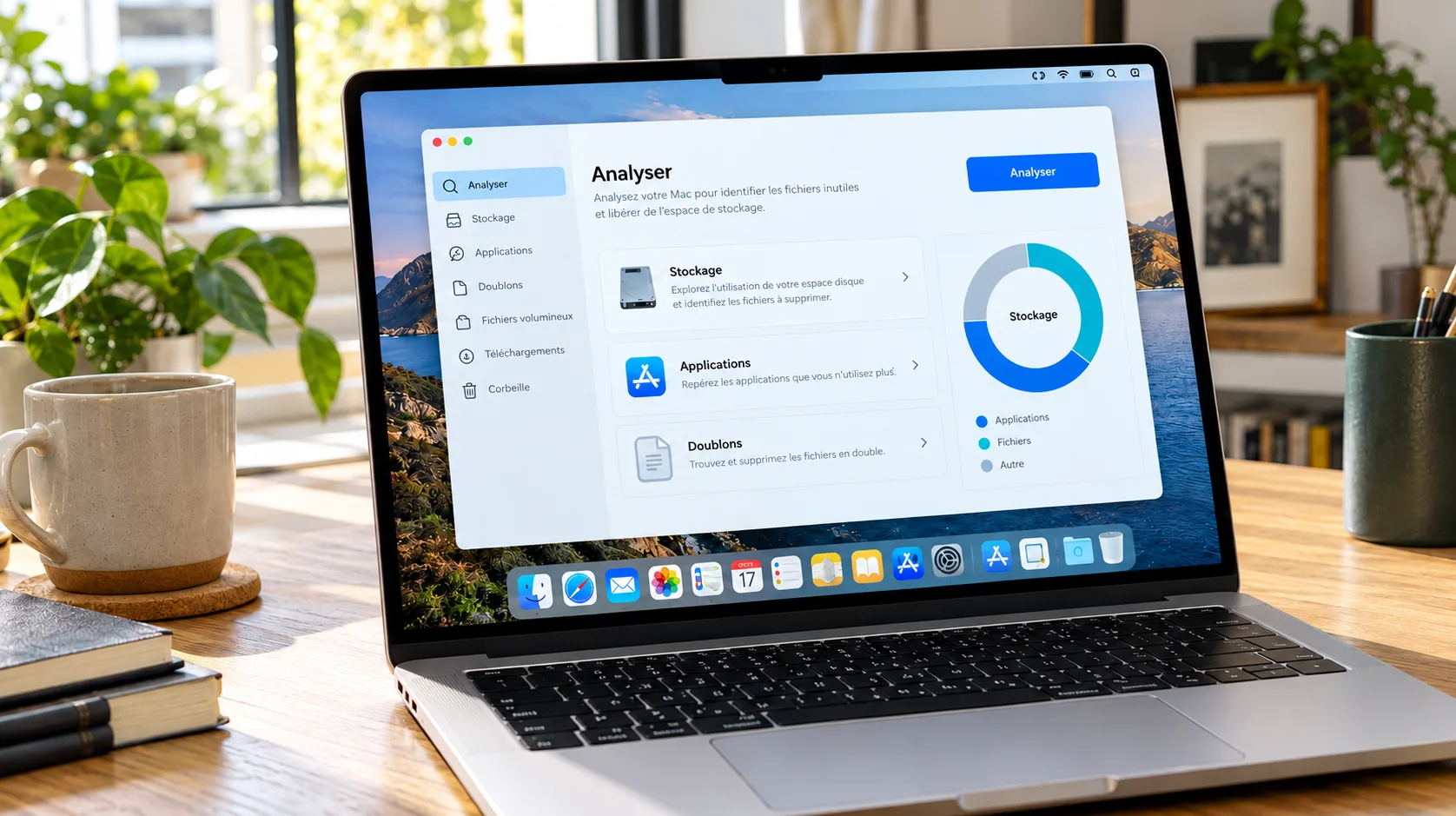
After downloading documents, installing apps and storing photos for a while, a Mac sometimes ends up running out of space. Sorting things out manually is still possible, but it takes time and a few precautions. A cleaning app can make this upkeep easier, provided it offers useful features and lets you decide what will be deleted. Here are the main criteria to examine before choosing.
An analysis of the space used
The first strength of a cleaning tool is to make visible what is cluttering your computer. An app like CleanMyMac brings together, among other things, features for removing unnecessary files, visualizing storage and managing applications. To compare solutions, look above all at how readable the results are: understandable categories, file sizes and precise locations. This overview should help you quickly spot an old, bulky video, forgotten downloads or archives that are no longer needed. Sorting by size and by date makes decisions easier, especially when you want to recover space without going through every folder.
Selective cleaning, with confirmation
A good app should explain what it proposes to delete. Temporary files, caches and personal documents do not play the same role. Consequently, deleting them calls for different handling. In its tips for freeing up storage space on Mac, Apple recommends, among other things, sorting through downloads, deleting unused apps and moving some files to external storage. The system also offers its own storage management tools.
The value of dedicated software then comes down to how simple its operations are. Look for a preview before deletion, the option to deselect each item and exclusions to protect certain folders. A recent backup remains a sensible precaution before a major clean-up.
Practical app management
Software installed for a one-off need often ends up staying on the computer for years. An uninstaller module helps you find these programs and examine their associated files before removing them.
Look for a layout that clearly separates the application from its ancillary components. You should be able to understand what will be removed, without risking confusing preferences that are no longer needed with work documents. Managing the items launched at login is another useful point. It lets you limit the programs that start automatically, while keeping the ones you really need.
Spotting duplicates and large files
Photos exported several times, attachments saved in different folders, old versions of a video edit… Copies pile up easily. A duplicate finder can speed up the sorting, provided it shows where they are located and offers a comparison before any action. For images, also check that it distinguishes identical duplicates from photos that are merely similar. Two close shots may each have their own value. The final selection must stay in your hands.
A simple interface and easy-to-understand settings
Finally, check compatibility with your version of macOS, the permissions requested and the pricing terms. A trial period lets you judge how clear the interface is and how relevant the detected files are.
Additional features, such as malware detection, can round out the package depending on your needs. What matters most is having an understandable tool that can simplify the regular upkeep of your Mac, with explicit actions and precise control over your data.
Partner article – this content was published as part of a paid commercial partnership. It does not reflect the views of the Kami-Labs editorial team.









0 Commentaires
Aucun commentaire pour le moment. Soyez le premier à commenter !