
One slider can cost up to 50 frames per second (FPS) for a difference your eye barely catches. That is one finding from Bellular Warcraft, a big YouTube channel about WoW, which went through the WoW Forever graphics settings before the November 4 launch. His October 28, 2026 video separates what really changes the picture from what only makes your graphics card sweat.
The numbers come from just two machines: a high-end PC (Ryzen 7 9800X3D processor, RTX 4070 Ti Super card) and an entry-level 2020 MacBook Pro. The PC’s processor is oversized, which isolates the weight of the graphics card. Here is the overview table, then each setting in detail. The other preparations before November 4 are in our guide to getting started on WoW Forever.
The WoW Forever graphics settings table
Each row repeats the advice given in the video. The « FPS cost » column sums up what Bellular sees when he changes a level, with no exact figure when he gives none.
| Setting | What it does | Bellular’s advice | FPS cost |
|---|---|---|---|
| Shadow Quality | Sharpness of shadow edges | Good | 10 FPS or more between the maximum and one or two levels lower |
| SSAO | Darkens corners, gives depth to interiors | High or Good | A few FPS |
| Compute Effects | Fog and mist | Good or above, the first to lower if your PC struggles | Tens of FPS toward Ultra |
| Secondary Lighting | Light from torches and secondary sources | Good, High if your machine can take it, never below Fair | Up to 50 FPS between High and Ultra |
| Liquid Detail | Water reflections and animations | Can stay on High | Negligible |
| Bloom Intensity | Glow around bright areas | Lower it | Minimal |
| Spell Density | Amount of spell visual effects | Essential | None measured in normal play |
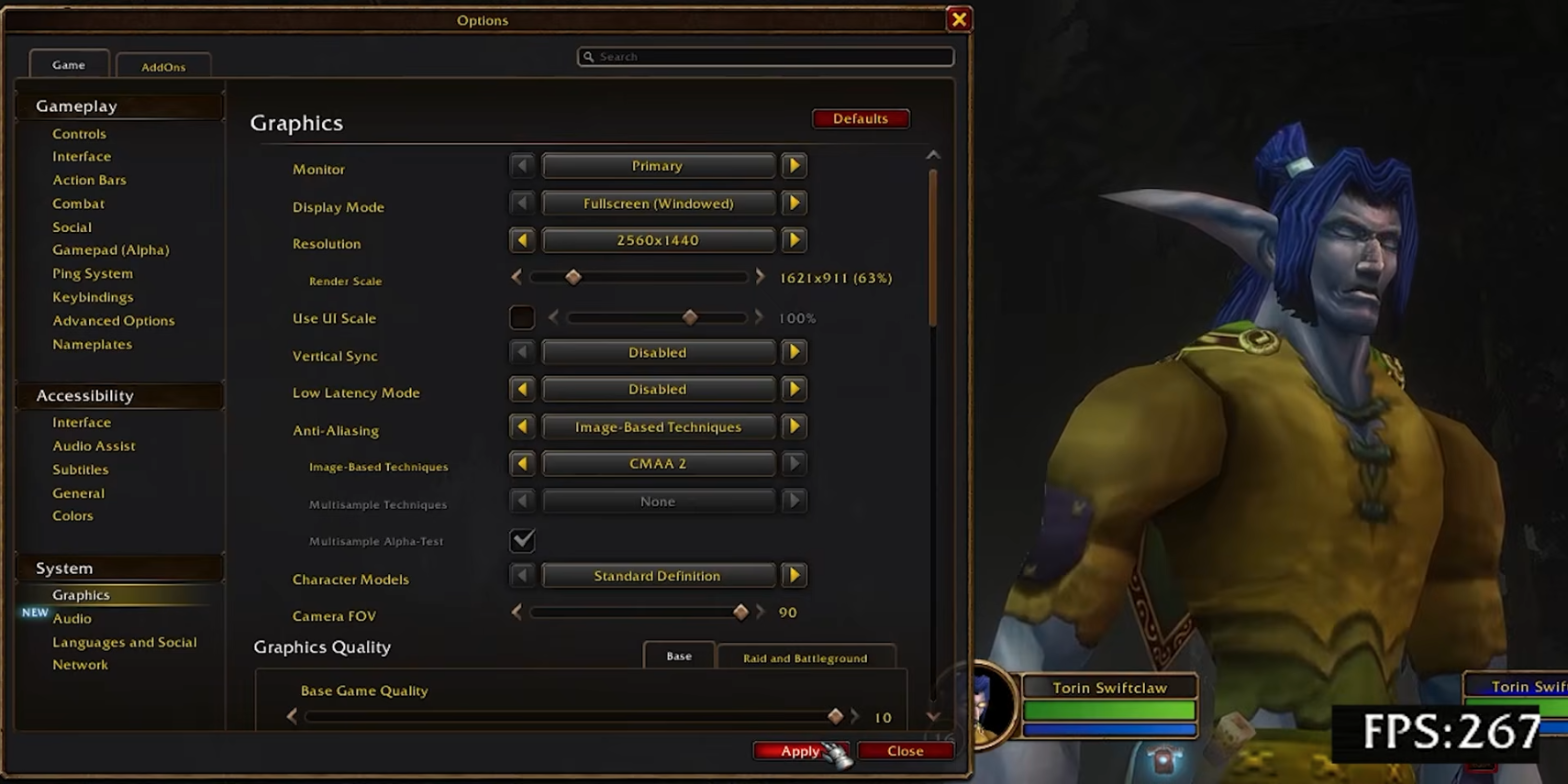
| Render Scale | Number of pixels calculated | Remove 10% first | The biggest lever |
| Ground Clutter, via console | Amount of grass and small scenery | 64 for more depth | Higher than you would think |
| View Distance | How far the scenery is drawn | Can stay high | Low, thanks to the fog |
| Texture Resolution | Sharpness of the images on the scenery | High | No impact seen |
Three new systems explain the weight of the WoW Forever graphics settings
WoW Forever is not the 2004 WoW: Bellular points out that a modern machine does not push hundreds of frames per second here without effort. The recent client looks very different thanks to three new systems: lighting, fog and water. Two of the three bring the machine to its knees, the third costs almost nothing.
Five settings drive them: shadows, SSAO, compute effects, secondary lighting and liquid detail. Returns diminish sharply. For the WoW Forever graphics settings, Bellular finds that the top level is almost always out of proportion. His starting rule fits in one sentence: one level below the maximum, or at least one level above the lowest.
Shadows
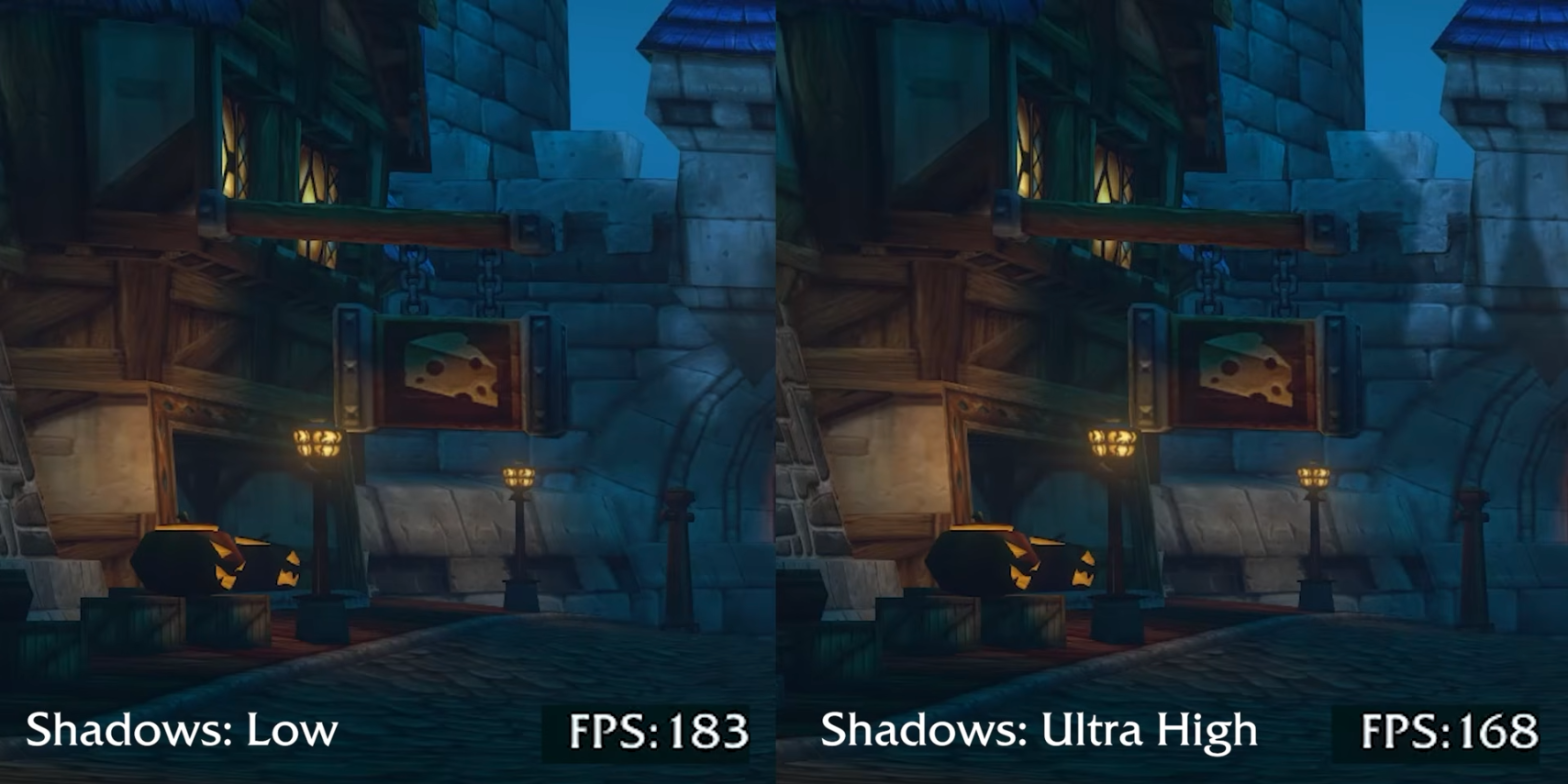
At Ultra High, every shadow has a perfect outline, and that level eats frames. Dropping one or two levels is visible but returns 10 FPS or more. Lower still, the look turns ugly for little gain.
Bellular puts the sweet spot at Good: shadows that are not perfectly sharp, without big blurry blocks.
SSAO
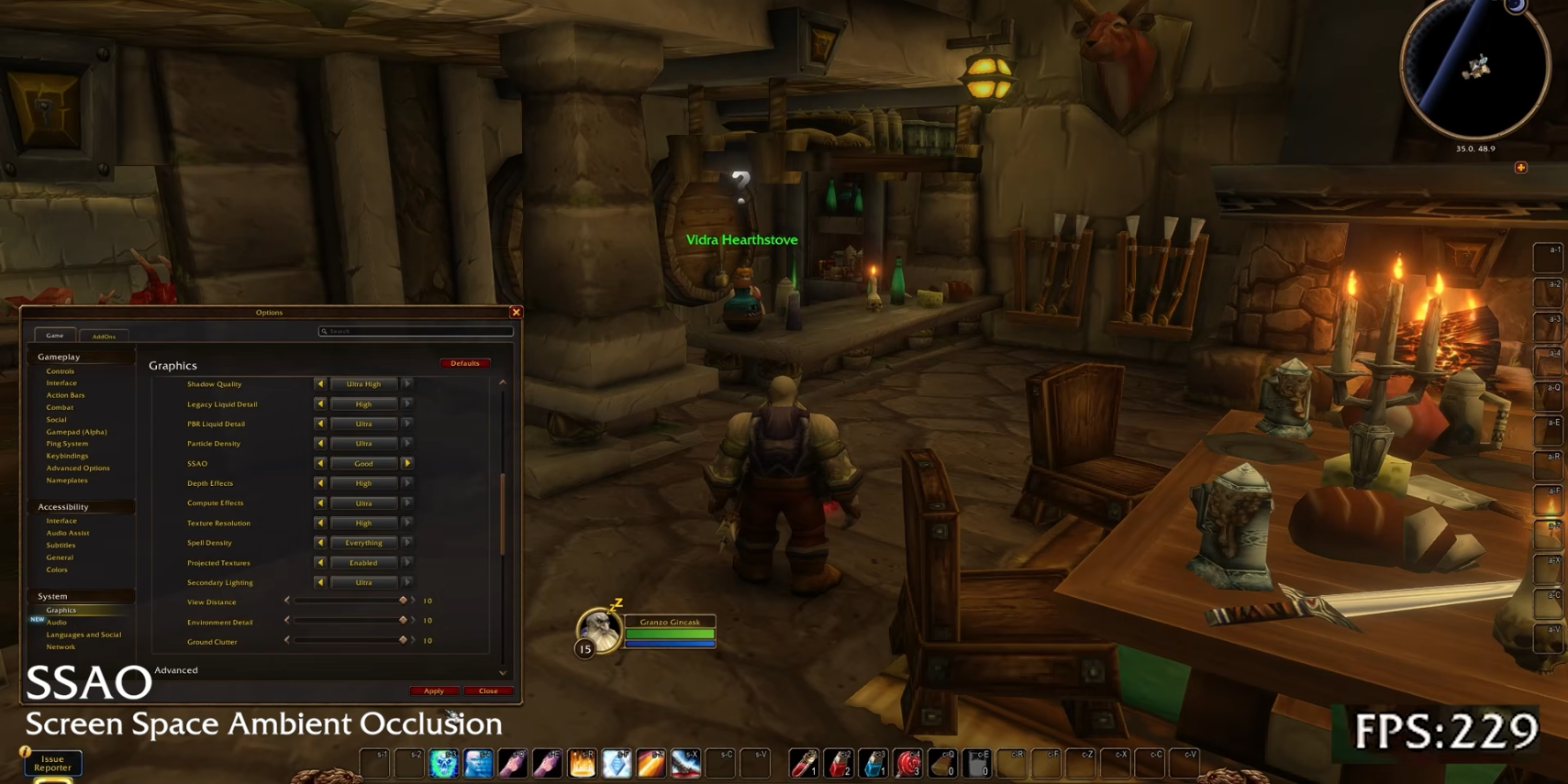
SSAO (screen-space ambient occlusion) darkens corners where light should not reach. It is a shadow that comes from no direct light. Turned off, interiors look flat and fake: inns suffer most.
This setting costs little: a few FPS when going to High or Good. Going lower gains little and makes interiors ugly, hence Bellular’s advice to keep the depth.
Compute Effects are the fog
The least obvious setting, by Bellular’s own admission. The short answer: fog. A large part of the new mist depends on it. It is hard to test, since some areas show no difference and others show an FPS gain.
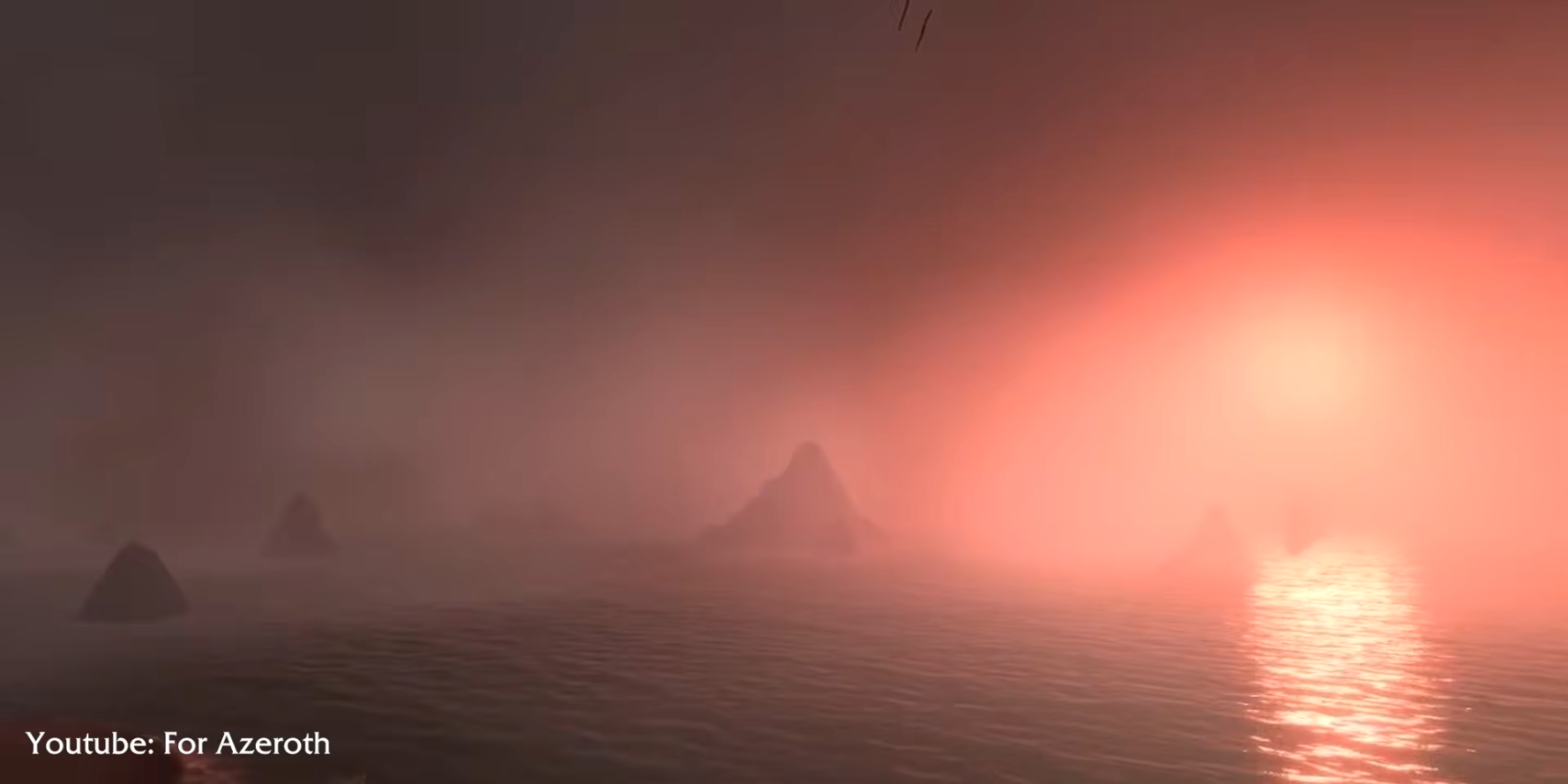
His ideal scene: Darkshore, the harbor of Auberdine at night. On high settings, the fog spreads evenly. At the lowest, blocks of fog appear in front of the pier structure. At Good or above, it is dense and real.
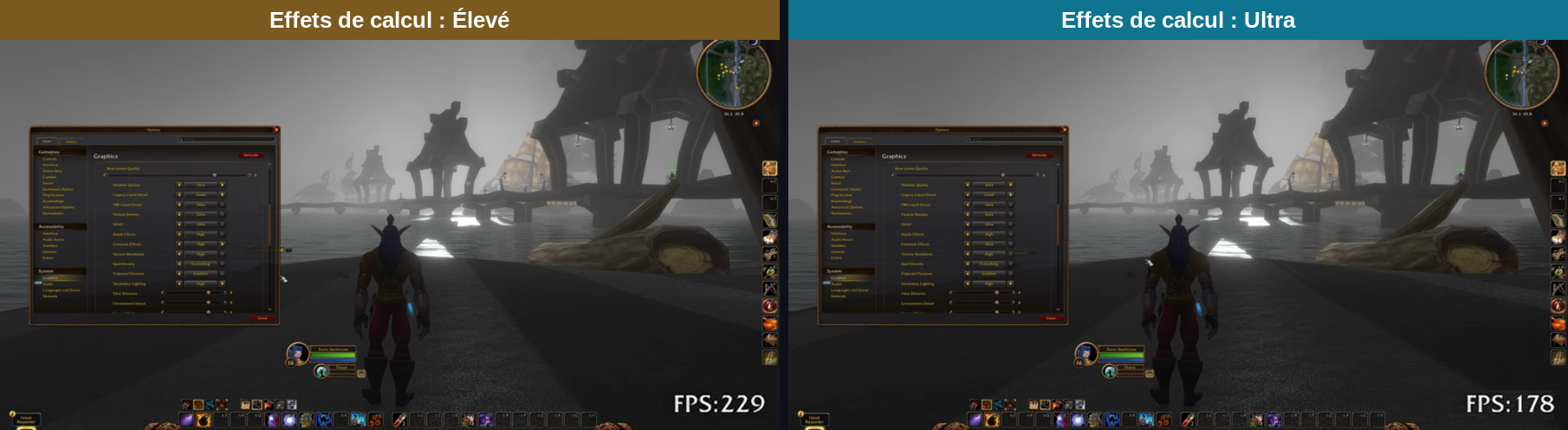
Here higher means prettier, but the price climbs fast: going to High then Ultra cost tens of FPS. Superb at the maximum, it is probably the first thing to lower to relieve your PC.
Secondary Lighting
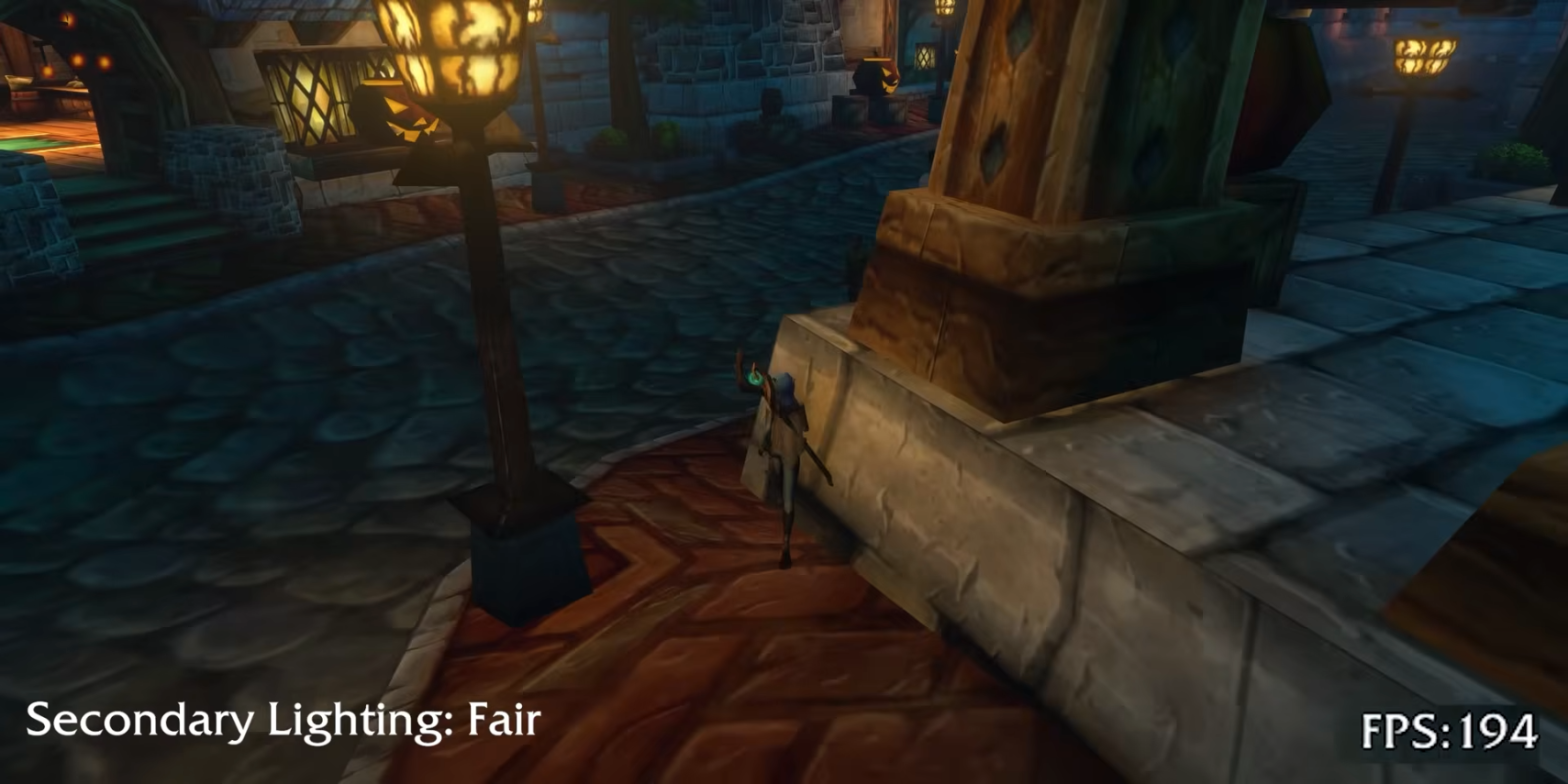
When a torch lights a dark forest, this is what does the work. Lighting matters more than anything for atmosphere, but it is an expensive effect by nature. According to Bellular, the game’s new lighting relies on ray-traced global illumination (ray tracing, computing the path of light ray by ray).
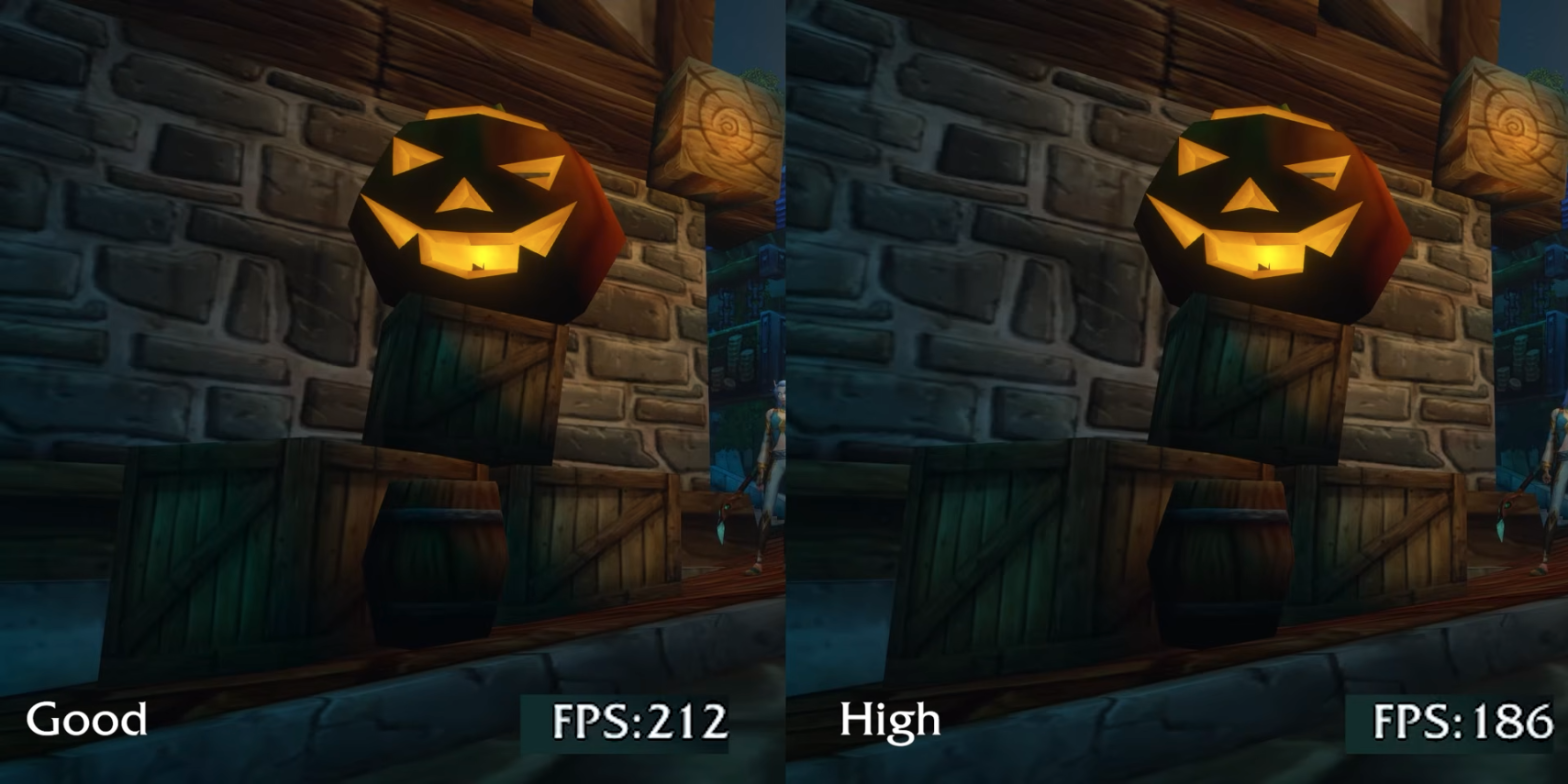
In his tests, Bellular measures up to 50 FPS lost between High and Ultra, while the visual difference is very hard to see. In a warmly lit corner, going to Good barely changes the picture and improves performance. Good is enough in most cases, High works if your machine can take it. At Fair, the atmosphere disappears: that is the line not to cross.
Water, the nearly free upgrade
Liquid Detail weighs almost nothing. Even for a trained eye, little separates the levels: reflections and animations stay present even at the lowest. The water is artistically beautiful and costs nothing notable, so High remains a perfectly reasonable choice.
Bellular’s verdict on these five settings: putting everything on Good gives the best value. Ultra is superb, but it puts the machine through a lot for a marginal gain.
Two comfort settings: bloom and spell density
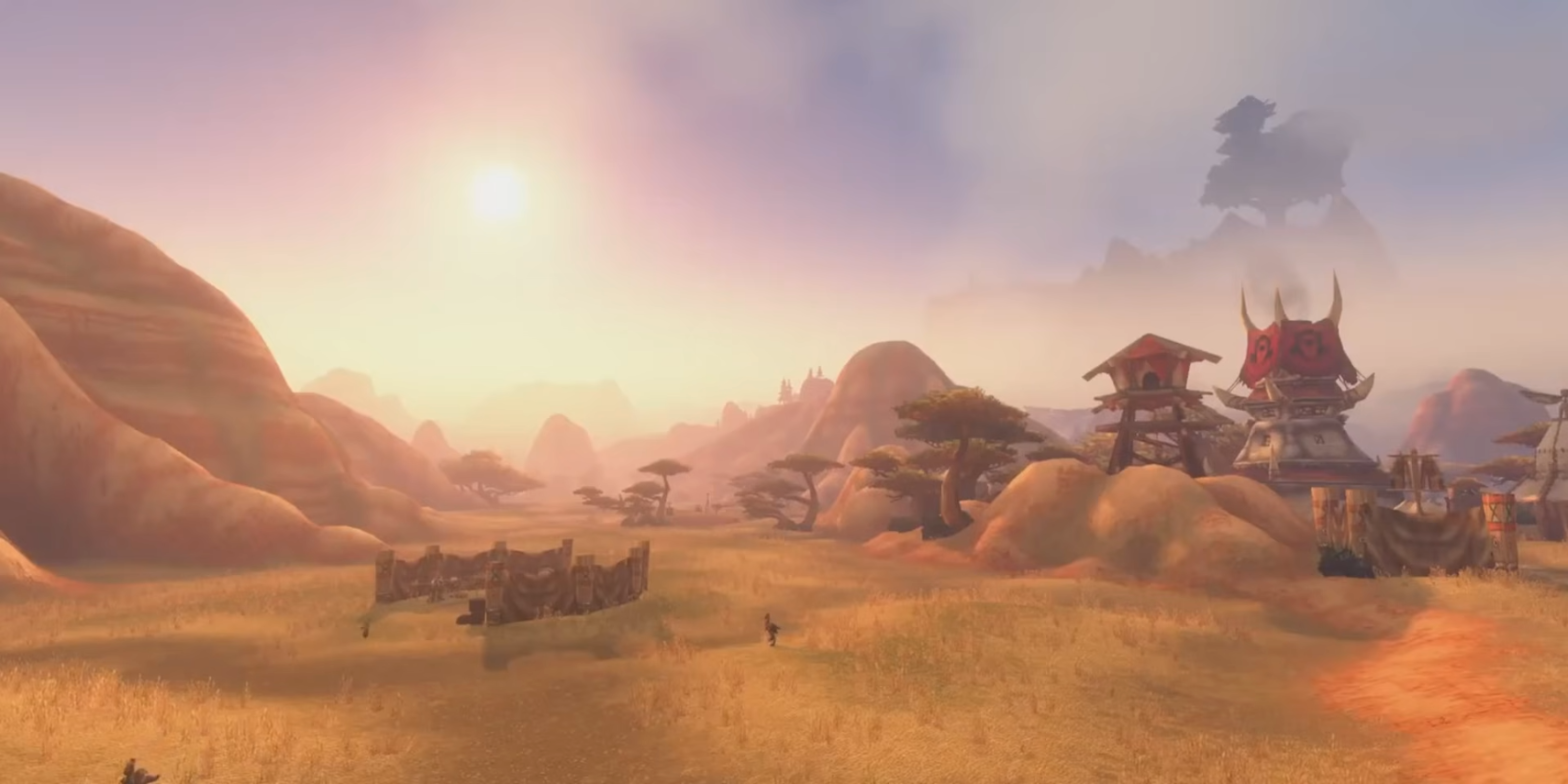
These two preferences are personal, Bellular says. The impact on performance is minimal, the impact on play is large. Bloom Intensity (the glow around bright areas) is set to the maximum by default. In Mulgore or the Barrens, it becomes blinding: better to lower it so you stop getting « flashed by a tuft of grass ».
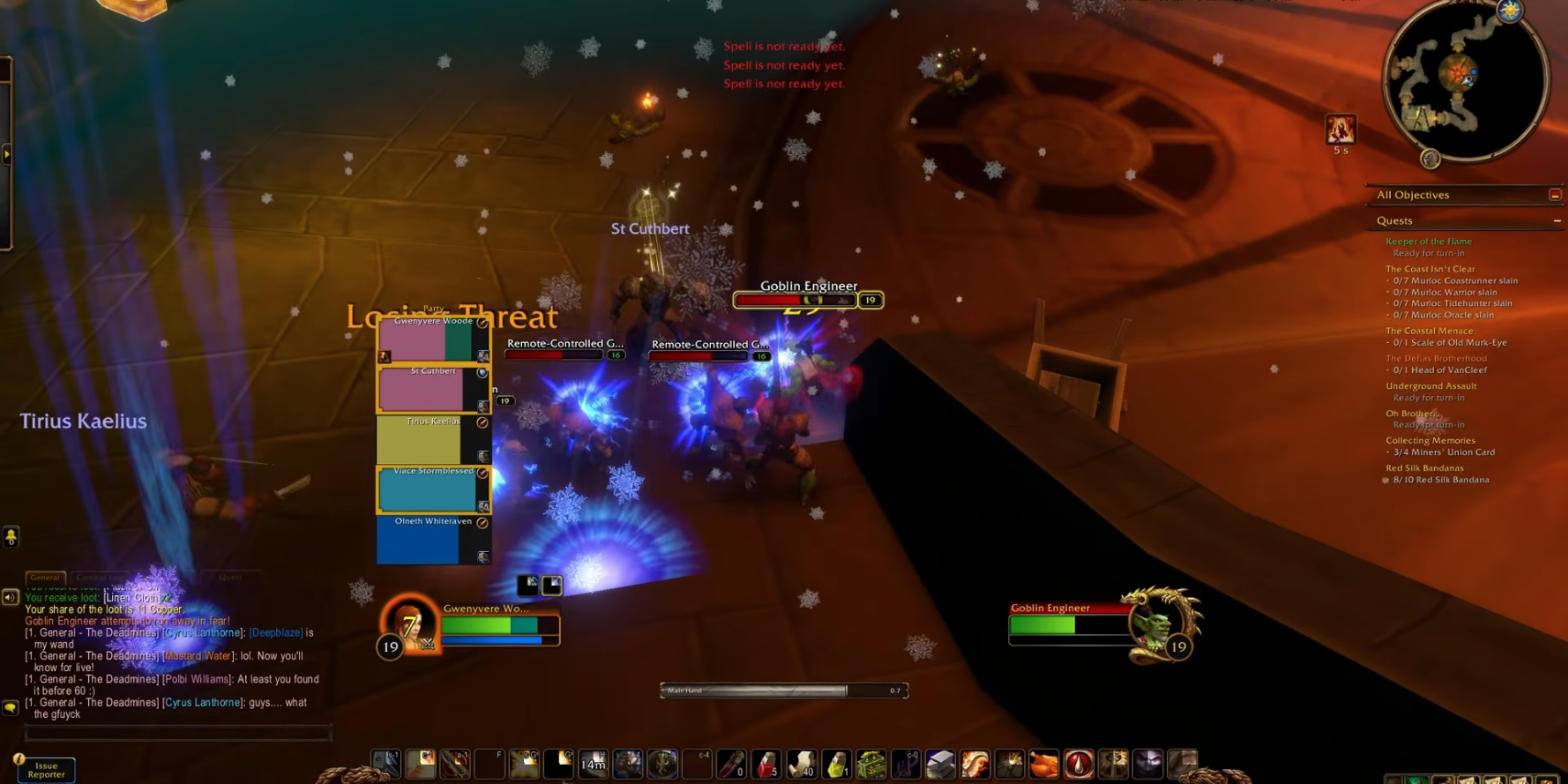
Spell Density sets the amount of visual effects. The new casting animations are very bright. Bellular measures no impact in normal play, but the setting will matter in raids and battlegrounds. His advice: « Essential », unless you want a light show.
The other sliders in the WoW Forever graphics settings matter little, according to the video, and the next section covers the most powerful of all.
Render Scale, the biggest lever
Of all the WoW Forever graphics settings, Bellular names this one as the most effective. He starts with pixel arithmetic. 4K (3840 x 2160) has 8.3 million. 1440p has 3.7 million, less than half. 1080p drops to 2 million, less than a quarter.
In practice, the gap is even bigger: this global illumination works much harder on every added pixel. Going from 1440 to 1080 nearly doubled the FPS in some situations. The downside is blur.
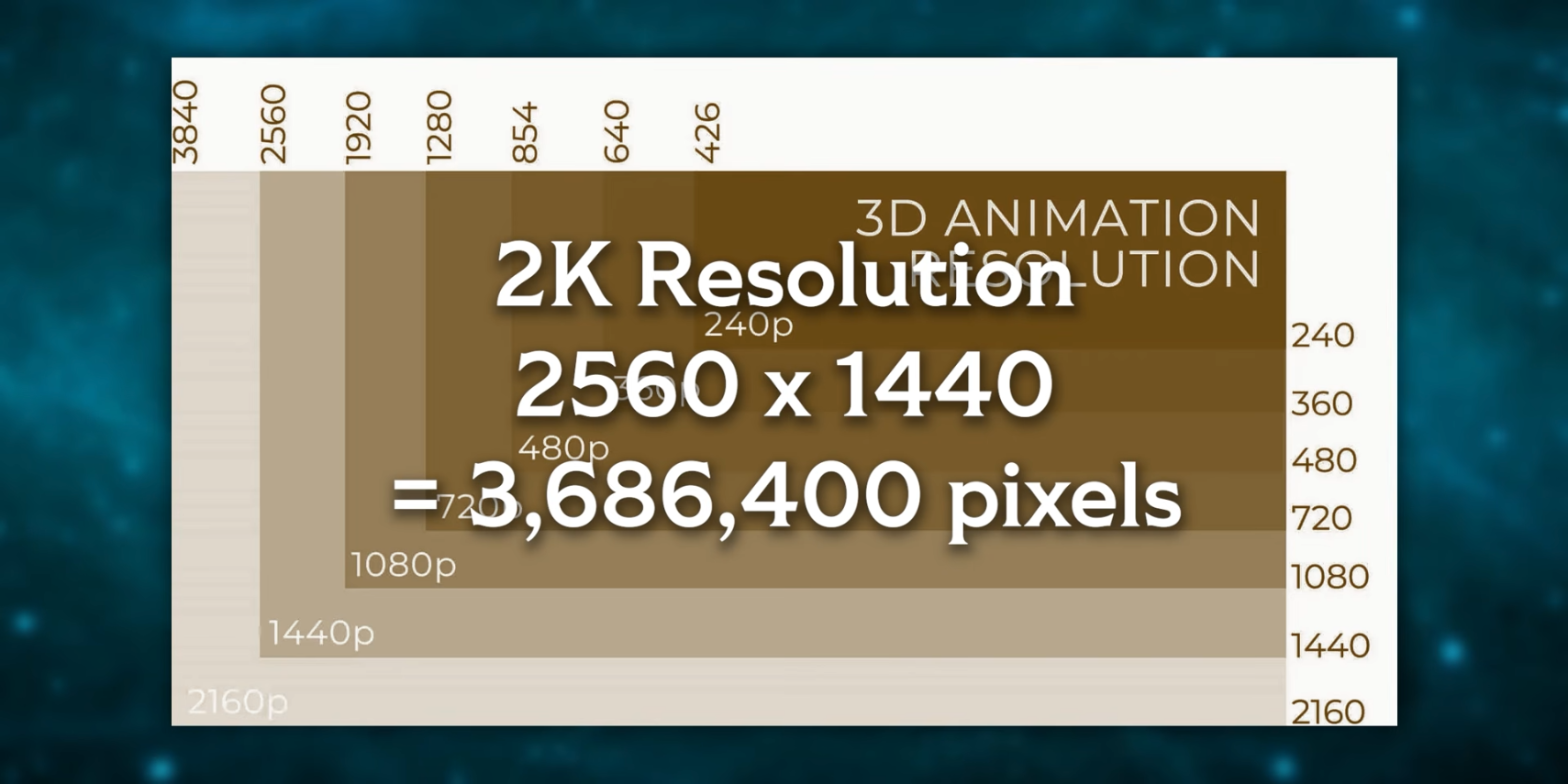
WoW does not support DLSS (Nvidia’s AI upscaling) or modern upscalers yet. There is a very old version of AMD’s FSR, « at worst distracting, at best ugly » according to Bellular. Since the pixel count climbs fast, removing just 10% gains a lot without too much blur. The right level then depends on screen size, pixel density and distance, whether you play on a monitor, a TV or a Steam Deck.
Grass and view distance: the console trick
Ground Clutter is set through the console. The command /console groundEffectDensity 64 adds grass. At the in-game slider’s maximum (10), the real value is 48. The effect goes up to 256, which Bellular calls « frankly a bit absurd ». He describes 64 as a visible improvement and 128 as a bit too dense for his taste, even if some people like it. This command already has its dedicated grass article, with the details of the tweak.
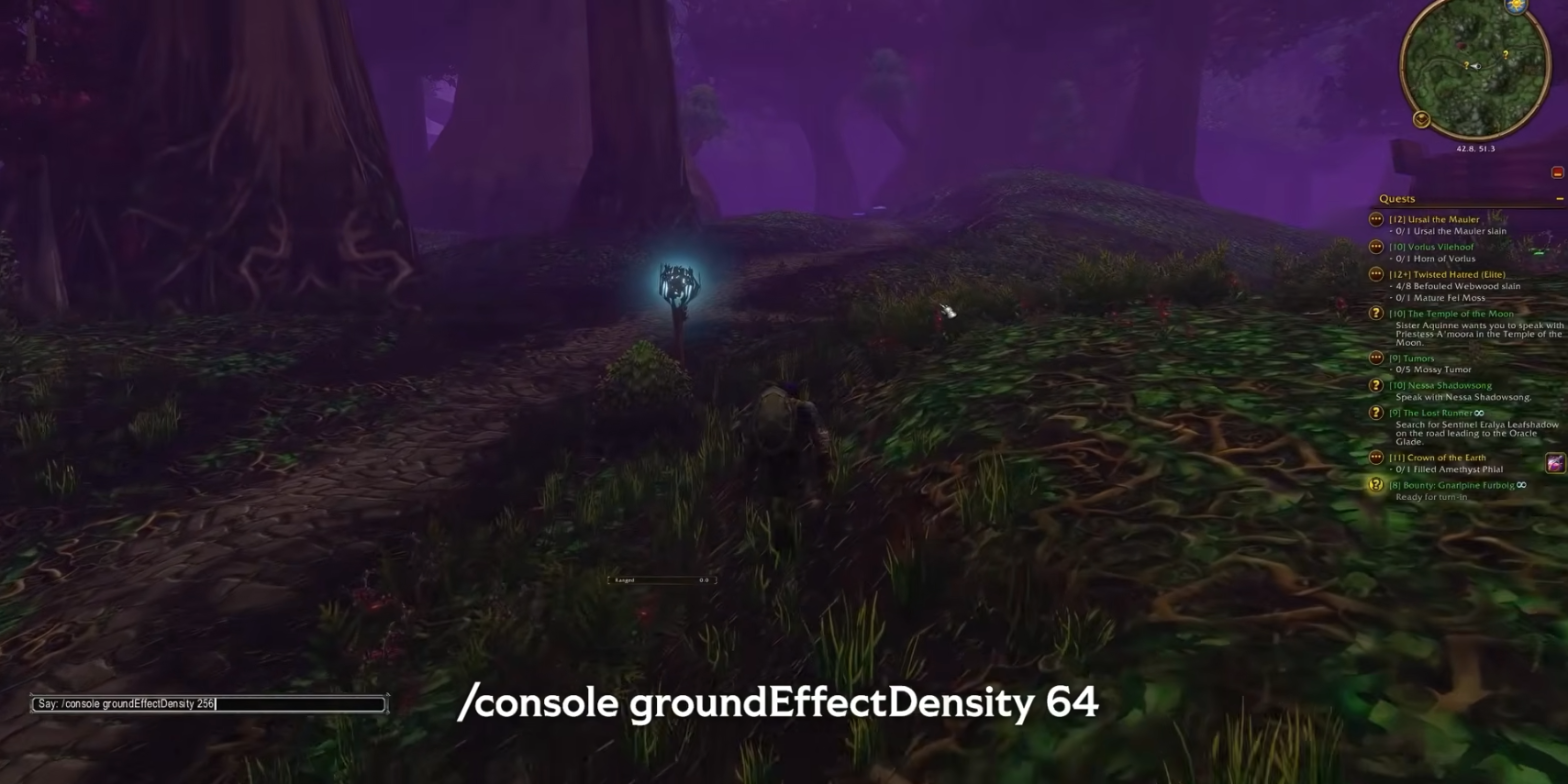
The FPS cost is higher than you would expect for grass. To go back, just type /console groundEffectDensity 48 or move the slider. Bellular also mentions groundEffectFade and groundEffectDistance, but advises against touching them: they produce odd effects, and the defaults exist for a reason.
Among the WoW Forever graphics settings, View Distance surprises him: it matters little. With the new fog, keeping it high looks much better, with no notable measured impact. It used to be the first thing you lowered. Today, Render Scale is the simplest lever.
What the WoW Forever graphics settings give on a PC and a MacBook
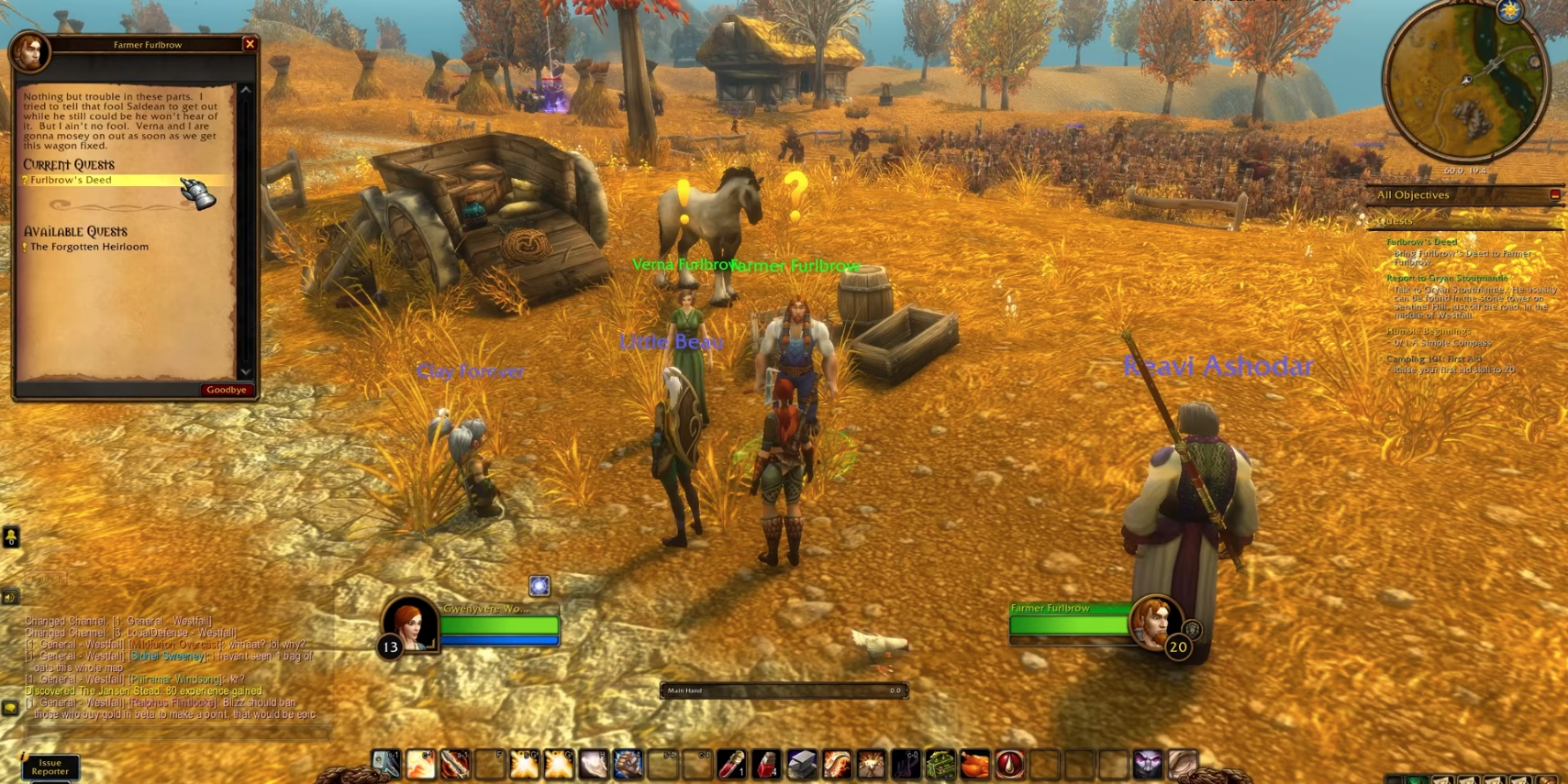
On the PC (Ryzen 7 9800X3D, RTX 4070 Ti Super), Render Scale stays at 100%. Bellular lowers shadows to Ultra (from Ultra High), Compute Effects to High and Secondary Lighting to High. Result: at least 144 stable FPS almost everywhere.
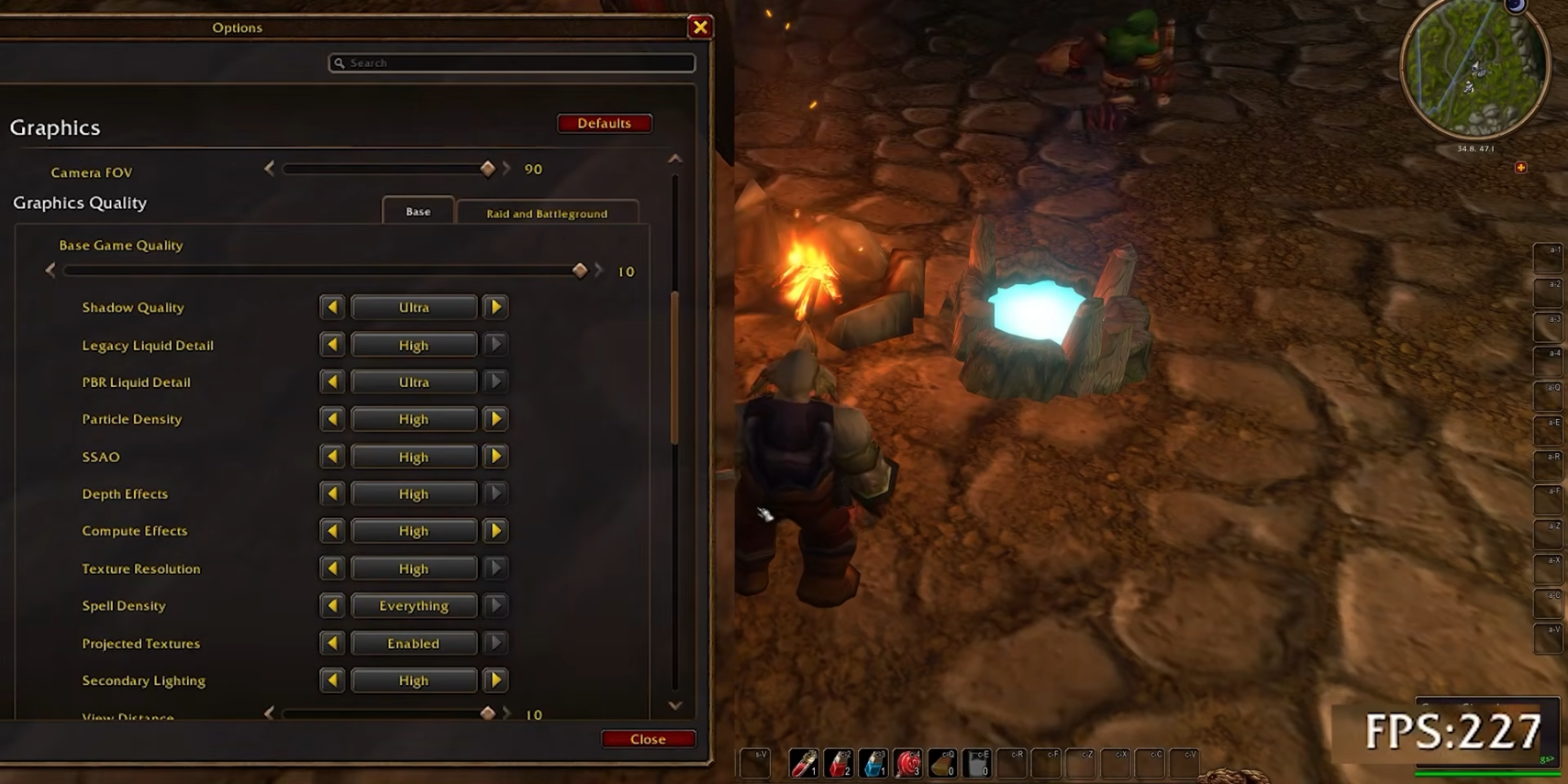
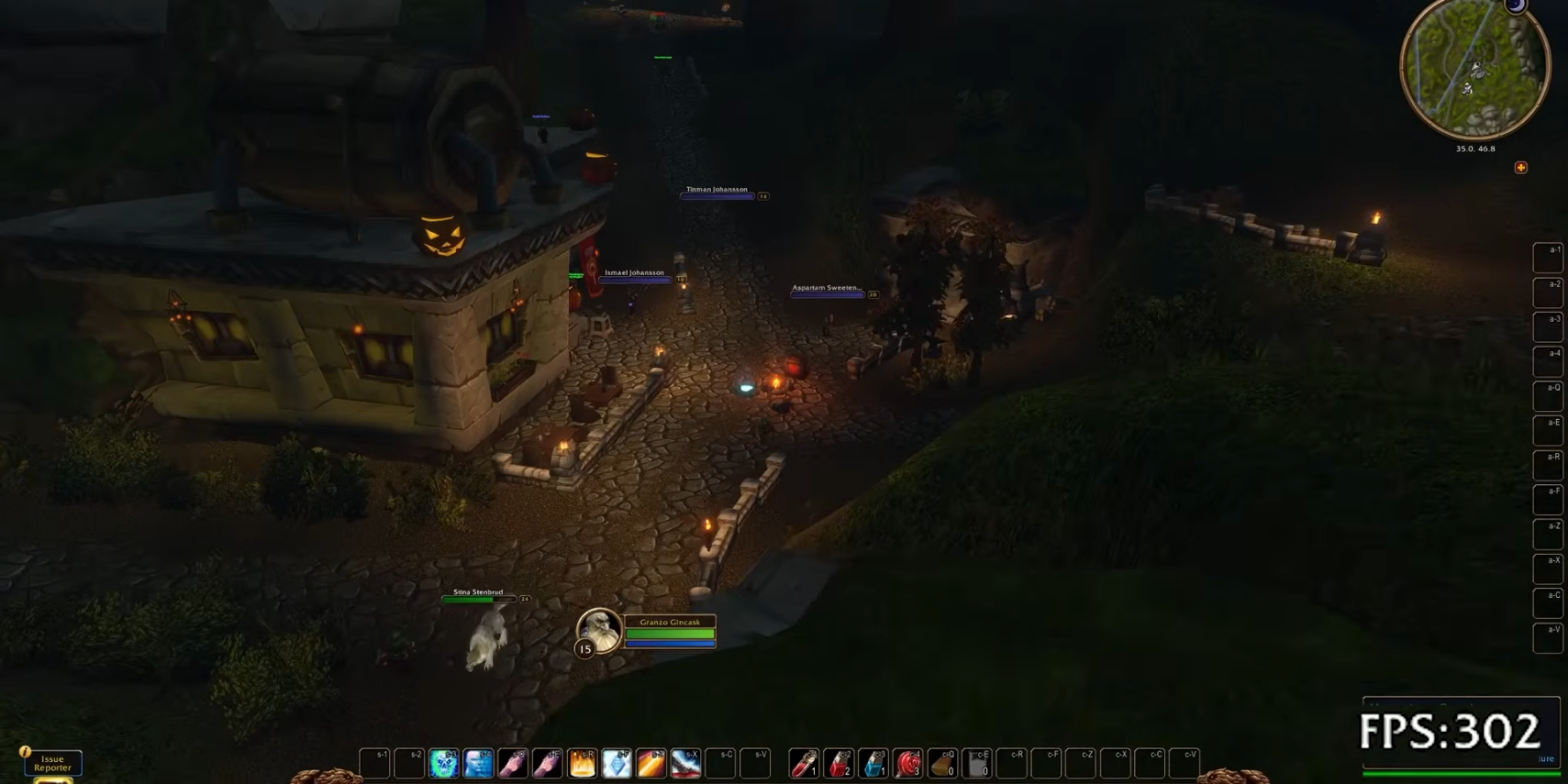
For a 240 Hz screen, one level lower on those three settings gives over 200 FPS, with minimal visual impact. At 75% resolution, the image turns into a blurry mush, but the counter shows 300 FPS.
On the 2020 MacBook Pro, « it went badly ». The lack of VRAM (the graphics card’s memory) hurts: every setting placed one level above the minimum gives 15 FPS, unplayable. At 50% resolution, which hurts him deeply, he reaches about 22 FPS, like Ocarina of Time, which Bellular also calls unplayable. He sets the minimum at 30 FPS for many players and the target at 60.
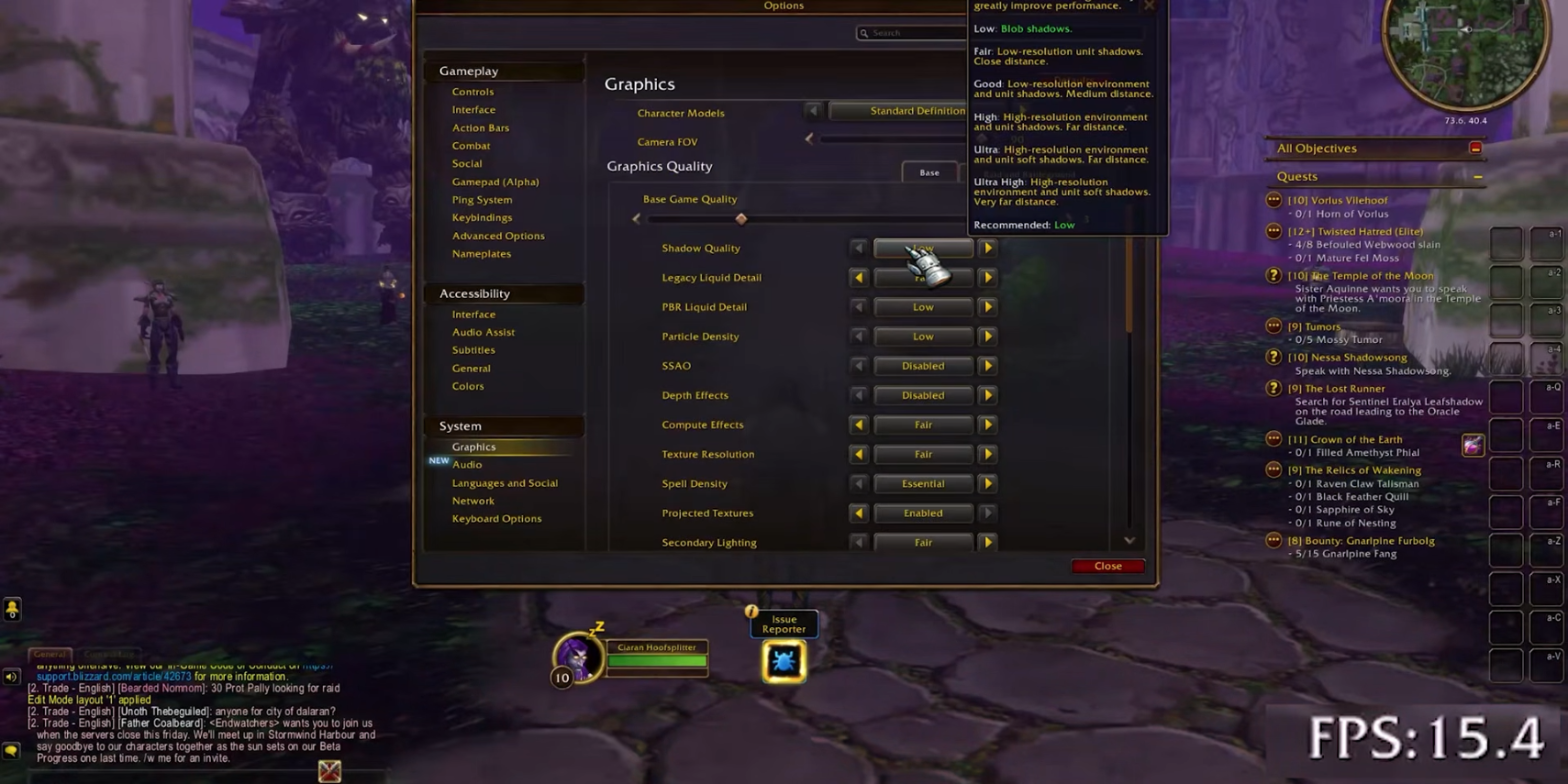
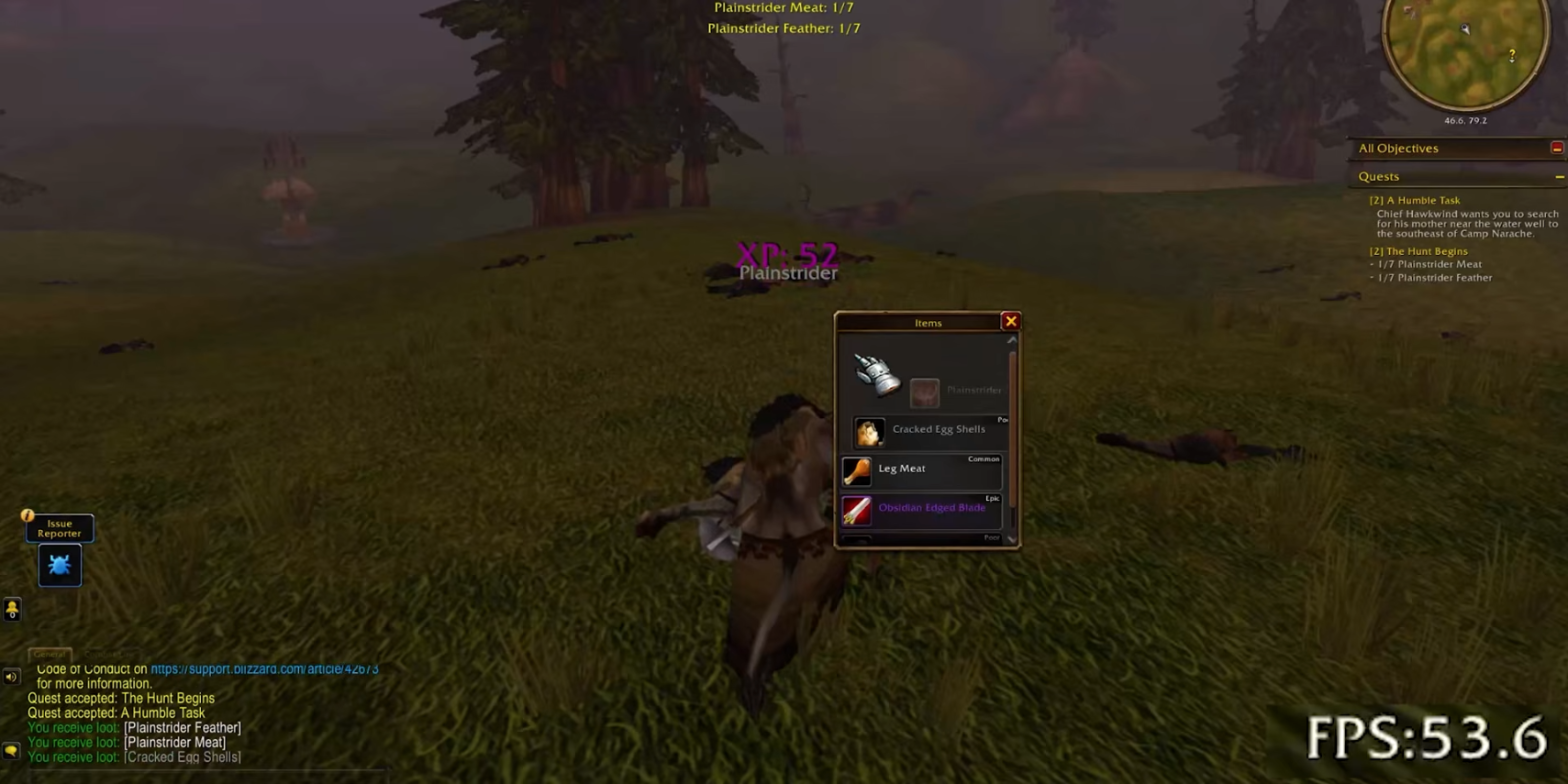
30 FPS comes from setting all the important options to the lowest, at the cost of a good part of what makes WoW Forever what it is. But Texture Resolution did not need to go down: putting it back on High improves the image a lot with no impact. In Mulgore, with a low Render Scale, the main settings at the lowest, textures, View Distance and scenery density at the maximum and liquids on Good, the Mac runs around 40 FPS. Bellular notes that a recent MacBook Air or a modern Windows laptop will do much better.
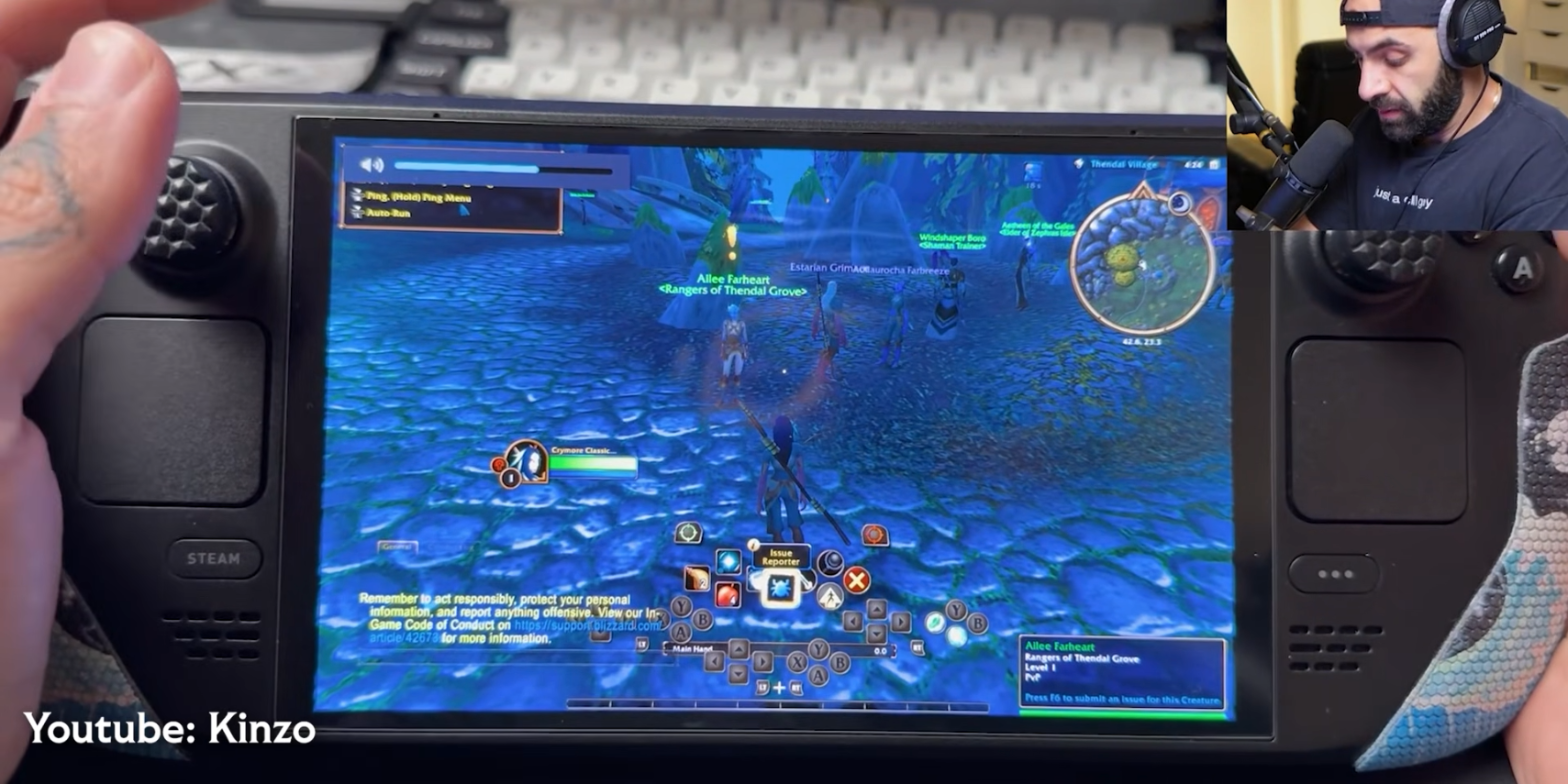
As for handhelds, he did not test the Steam Deck. Other players report a playable experience on several models, between 40 and 75 FPS.
The Hyperframe addon: Bellular’s warning
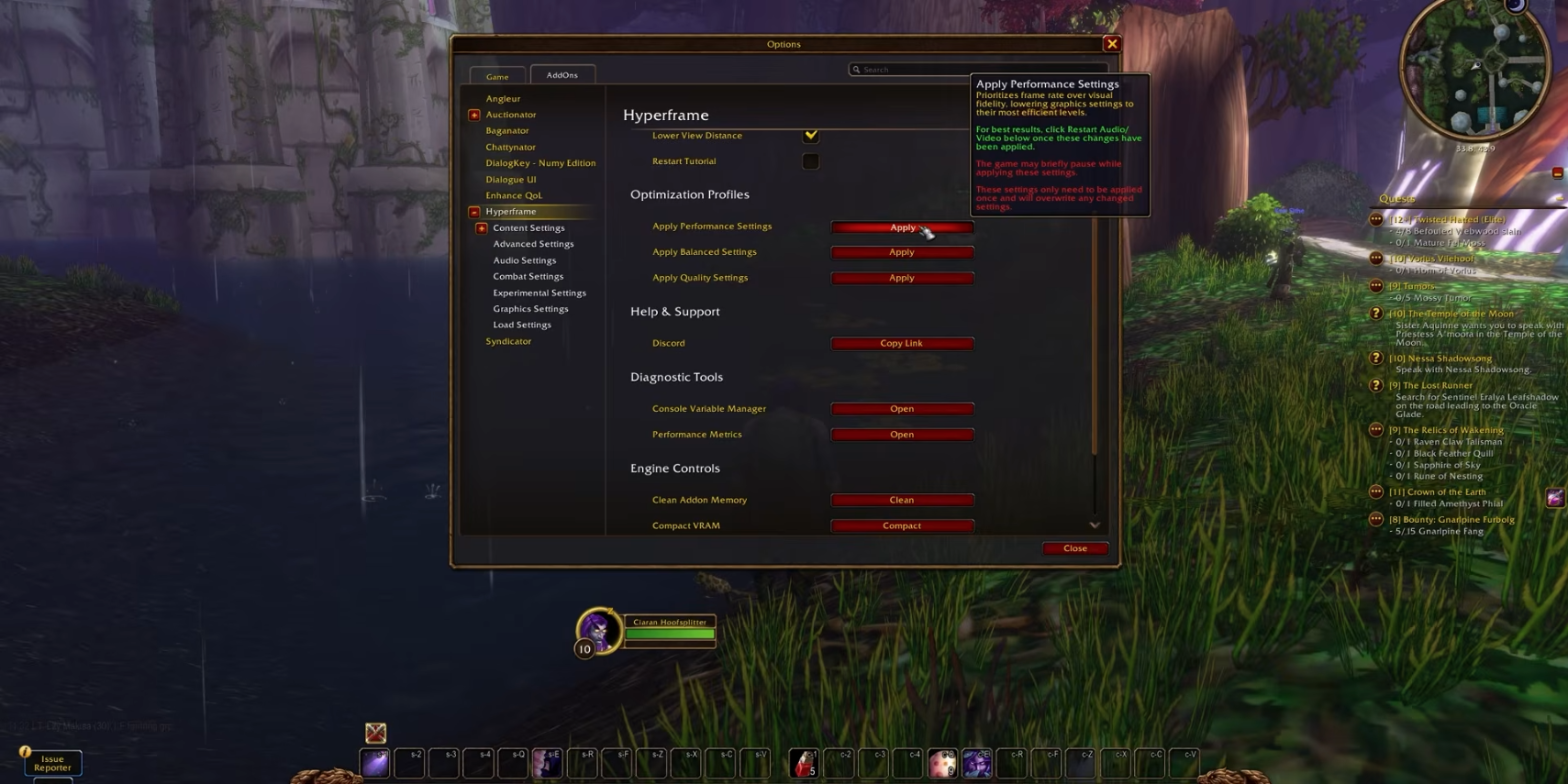
The Hyperframe addon, often recommended, changes the WoW Forever graphics settings on its own. Bellular found « hacks » in it that he considers unacceptable. By default, it reduces the camera’s field of view (FOV): the view is more zoomed in, fewer things are shown and motion sickness looms. After using it, Bellular also saw pop-in (scenery appearing late) that was not there before.
Bellular admits bad luck may play a part. His conclusion fits in one line: « if you know the settings, you don’t need the add-on ». The channel announces an addon guide for later.
Bellular’s recipe for gaining FPS with the WoW Forever graphics settings comes in three steps: the water can stay where it is. Shadows, Compute Effects and Secondary Lighting should go down. Render Scale goes last, and the more blur you tolerate, the more it gives.





0 Commentaires
Aucun commentaire pour le moment. Soyez le premier à commenter !