
A sparse lawn turns lush after a single line typed in chat: that is what TheAllianceFootman shows in a 66-second Short. He opens with “WoW Forever looks phenomenal, but what if I told you there’s a way to make it look even better?” His recipe for better WoW Forever graphics takes three steps.
Only one of these steps really changes WoW Forever graphics: the grass command. The sliders he shows are the ones the game already applies by default. And the denser scenery has a downside for performance, which is already fragile in the beta whose latest patch, on October 8, opens Dalaran.
Set everything to Ultra in the Graphics tab
The demo goes straight to the point, and these settings are easy to reproduce. Step one: open the options menu, then click the Graphics tab. The advice is blunt: put everything on Ultra. Then scroll the list down a little.
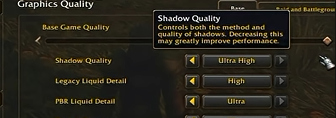
The screenshot shows the Graphics Quality menu, Base tab. Shadow Quality is set to Ultra High. The game’s own tooltip warns about the cost of this setting: “Controls both the method and quality of shadows. Decreasing this may greatly improve performance.” If your machine struggles, this is the first slider to lower.
Water has two separate settings. Legacy Liquid Detail handles the classic water, here on High. PBR Liquid Detail (PBR stands for physically based rendering, a lighting model that mimics real light) drives Forever’s new water, set to Ultra here. To put these options in the context of this test phase, see our beta review after level 30.
Contrast, brightness, gamma: the Short’s values are the defaults
In the Short, the creator stops on three sliders: contrast, brightness and gamma. He hints that you can play with them, but that “those are the values that have worked the best for me.”
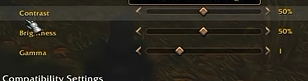
The screenshot shows Contrast 50%, Brightness 50% and Gamma 1. Those are exactly the default World of Warcraft settings. If you never touched them, you are already there. This part is mostly useful for resetting if those sliders ever moved. The real gain from the Short comes later.
Another take is going around. In an article from September 21, 2026, Icy Veins suggests 60% contrast and 40% brightness, “depending on your monitor.” The idea is to widen the gap between light and shadow so the new fog effects stand out.

Emma also recommends lowering Render Scale from 100% to 98%. It sounds counterintuitive, but the image reportedly looks cleaner with no visible loss, and a few frames per second come back along the way. She points out that tuning WoW Forever graphics remains a matter of taste. The simplest approach is to try both sets of values in a foggy zone, then keep whichever your screen renders best.
The command that thickens the grass
Once the menus are closed, go back into the game and type the following command in the chat window. The Short’s creator also leaves it in a comment under the video, so you can copy it without retyping anything.
/console groundEffectDensity 256Before you press Enter, take a good look at the ground. The Short shows the grass before, then after, in the same spot, and the difference is striking. The tufts become much fuller.

groundEffectDensity is a console variable (CVar, an internal game setting you change by typing a command). It controls the density of “ground effects”, meaning the grass, flowers and small details placed on the ground. The value 256 is the maximum commonly cited by the community. According to published tests, going beyond it changes nothing.
A related variable, groundEffectDist, sets the distance up to which this grass is drawn. Community macros often set it to 140. Treat it as a lead worth testing, with no guarantee of results on Forever.
If the grass goes back to its old density after a restart, just type the command again. You can also drop it into a macro, and our page of 240 WoW Forever macros for all 9 classes shows how to use them.
These denser WoW Forever graphics come at a price. More grass means more objects to draw, and the graphics card works harder, especially in grassy zones like Elwynn Forest or Mulgore.
Before pushing everything: watch Secondary Lighting
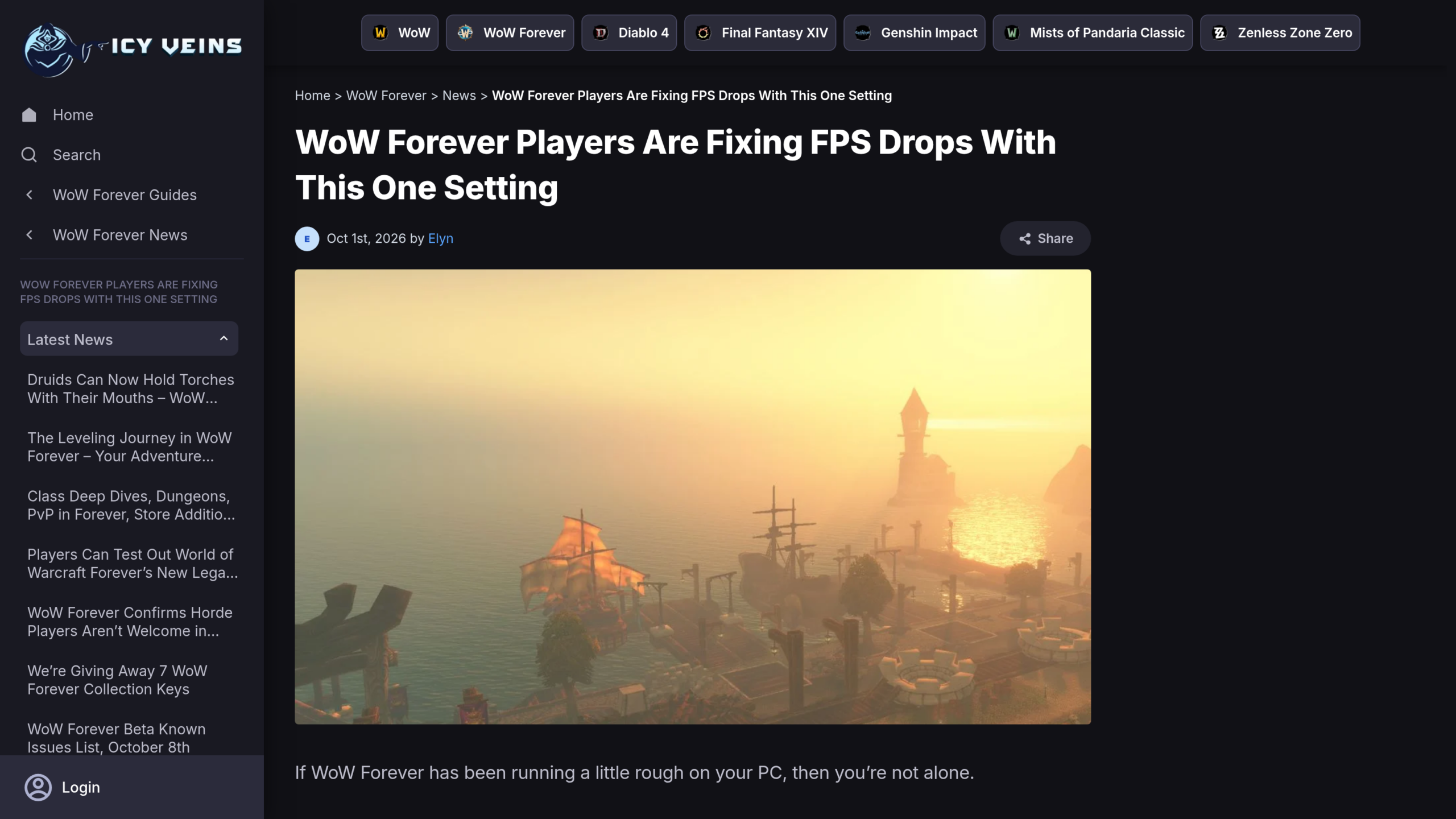
Pushing all WoW Forever graphics to Ultra is tempting, but the beta does not always keep up. According to Icy Veins, in an article by Elyn on October 1, 2026, players report stutters and frames per second (FPS) that gradually drop, especially in Stormwind and Thunder Bluff. Even high-end PCs show an uneven frame rate, despite more than 100 FPS measured.
The most cited setting is Secondary Lighting. Switching it from Maximum to Good or Fair reportedly fixed most of the lag for one player, and others describe a smoother game. On Blizzard’s forums, Good comes up often among those who suffer sudden drops.
Lowering the whole preset sometimes changes almost nothing. Part of the problem may come from the beta’s own optimization. So there is no need to sacrifice textures or the rest: just target the culprits. The link with the Short is direct, because Ultra shadows (the game’s tooltip warns they are expensive) and grass at 256 both add to the load. If your frames drop, start lowering from there.
- Secondary Lighting on Good or Fair
- Shadows one notch below Ultra
- Grass below 256
- Frame rate cap set to a value your machine holds without effort
That cap matters more than you might think. One player at 1440p settled on 60 FPS, another on 72 to match their monitor. A stable frame rate feels smoother than a higher number that jumps from 15 to 60, then to 200.
Memory leaks and degradation over long sessions were reported, then fixed in late September according to the same source. After a stint in a crowded city, restarting or repairing the game still helps. Test your settings in a quiet zone, then in a packed city, never in just one of the two.
For PvP, the priority is clear. Facing dozens of players, as in our test of wild PvP with hundreds of players and almost no lag, smoothness weighs more than grass density. One more blade of grass will not save anyone from a stuttering charge.






0 Commentaires
Aucun commentaire pour le moment. Soyez le premier à commenter !