

On November 4, you don’t want to spend your first evening working out why an arrow won’t show up. You may as well install RestedXP WoW Forever now, during the beta, and iron out the snags before the rush. The job takes ten minutes, plus a few traps that existing guides don’t mention yet.
Paid partnership
RestedXP sponsors Kami Labs videos. This article contains affiliate links: the site earns a commission on each sale, and you pay 10% less, applied automatically.
Affiliate link · levels 1 to 20 free for everyone
One thing to know right away: the official RestedXP tutorial has not been rewritten for Forever. The most up-to-date setup guide I could find is the one from WoW Forever Guides, a third-party site, which states itself that the original manual was not adapted. What you read here cross-checks that page, the CurseForge page of the addon and the release notes published on GitHub.
Before you start: what is free and what is not
The addon is free. The full guide is not: you buy it. Installing the addon therefore does not unlock the paid routes, which is the most common source of confusion. To install RestedXP WoW Forever and use the free levels, steps 1 to 3 below are enough. Step 4 only concerns those who bought a guide. Prices, covered levels and the roadmap are detailed in our RestedXP WoW Forever guide, so I won’t repeat them.
One last precaution on the hardware side: RestedXP only supports Windows and Mac. On Linux, Steam Deck, Wine or Proton, you lose your right to a refund, according to WoW Forever Guides.
Step 1: install RestedXP WoW Forever from CurseForge
Open the RestedXP Guide page on CurseForge and go to the Files tab. The version list shows the “flavors” (the game variants) in a column: Retail, Forever, MoP Classic, Titan Reforged Classic and Classic. Take the most recent version, the Forever one. A copy meant for another client will be flagged as outdated in game, because Forever has its own interface number (16001, according to WoW Forever Guides).
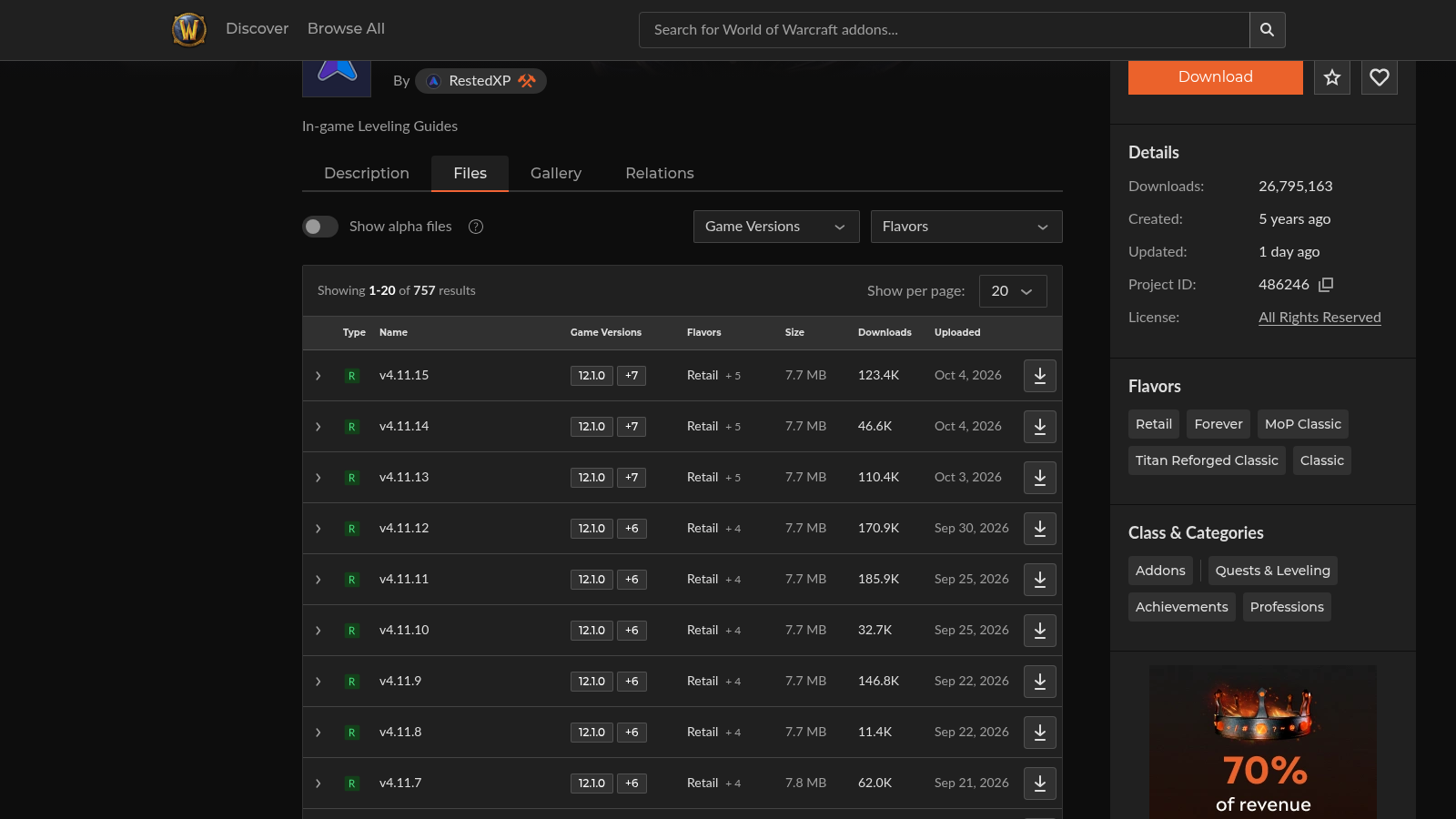
Already have an older version of RestedXP, installed for MoP Classic or something else? Delete it first from the addons folder of the Forever client. Two copies side by side is an error waiting to happen.
No account or app required: you can download the zip by hand from CurseForge, or from the releases published on GitHub, which provide an RXPGuides file in zip format. If you prefer the CurseForge app, it takes care of installing RestedXP for you. For the details of that route, our guide to installing RestedXP via CurseForge (in French), written for MoP Classic, still holds for the app part.
Step 2: find the AddOns folder of the Forever client
Here is the path given by allthings.how for the beta: World of Warcraft_classic_beta_InterfaceAddOns. The Forever client folder is therefore called _classic_beta_, not _classic_era_ or _retail_. I found no official Blizzard source for this name, and the cited site states itself that the launch-day path is not known. If the folder changes on November 4, you will need to copy the addon over again.
Unzip the archive. You get a folder named RXPGuides. Copy that whole folder, not the zip, into AddOns. If the AddOns folder doesn’t exist, create it. Then check that the RXPGuides.toc file sits directly in AddOnsRXPGuides, and not one folder deeper. An extra folder is the classic trap when you install RestedXP by hand: the addon then never shows up.
Step 3: enable the addon in game
Launch the game, open the addon list from the character selection screen and tick RestedXP Guides. If the box is greyed out or crossed out, the addon is considered outdated: we come back to that below. Once in game, type /RXP or /RXPG to open the interface, according to the CurseForge page.
If the addon doesn’t show up at all, quit the game and relaunch it. A simple interface reload doesn’t detect a folder added after startup, as allthings.how points out. New folders are only read at launch.
On an account without a purchased guide, you stop here. The free routes are already loaded.
Step 4: import the guide you bought
This is where the essential part happens for anyone who paid. The guide is tied to your RestedXP account and your Battle.net identifier. Before importing it, add your Battle.net ID in the account section of the RestedXP site. Without it, the import fails, and the error isn’t explicit.
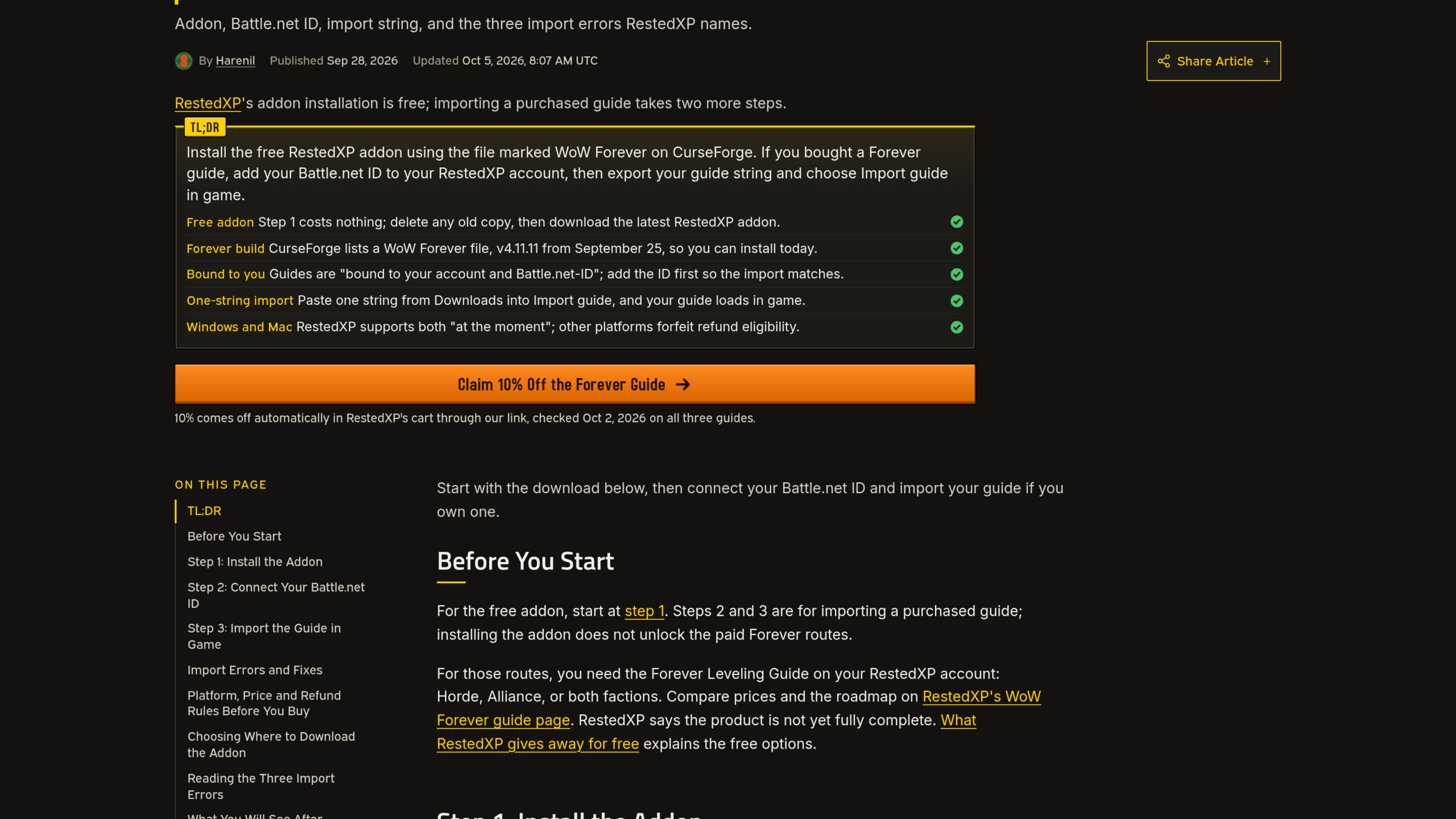
- On the RestedXP site, open the Downloads section of your account and export your guide’s string.
- Copy the whole string, from the first character to the last.
- In game, right-click the addon window and choose “Import guide”.
- Paste the string and confirm.
Updates cost nothing: you re-import the route data the same way, online, and you update the addon from the source where you got it. The paid guide exists in a Forever version on the RestedXP shop, with the 10% discount applied at checkout.
The three import errors and how to fix them
RestedXP names three errors, listed by WoW Forever Guides. Here they are with their likely cause.
| Message | Cause | Solution |
|---|---|---|
| undefined | Your Battle.net ID is not filled in on the RestedXP site. The word appears in the string itself, before the import. | Add the ID to your account, then export a new string. |
| Invalid Value | The guide can’t reach your Battle.net account. | Go online or restart the game. |
| Invalid Import String | The Battle.net ID doesn’t match the one on the account. | Contact support on the RestedXP Discord. |
You can fix the first two yourself. The third needs a human: don’t waste time regenerating ten strings.
Profile not saved and outdated addon: the two other traps
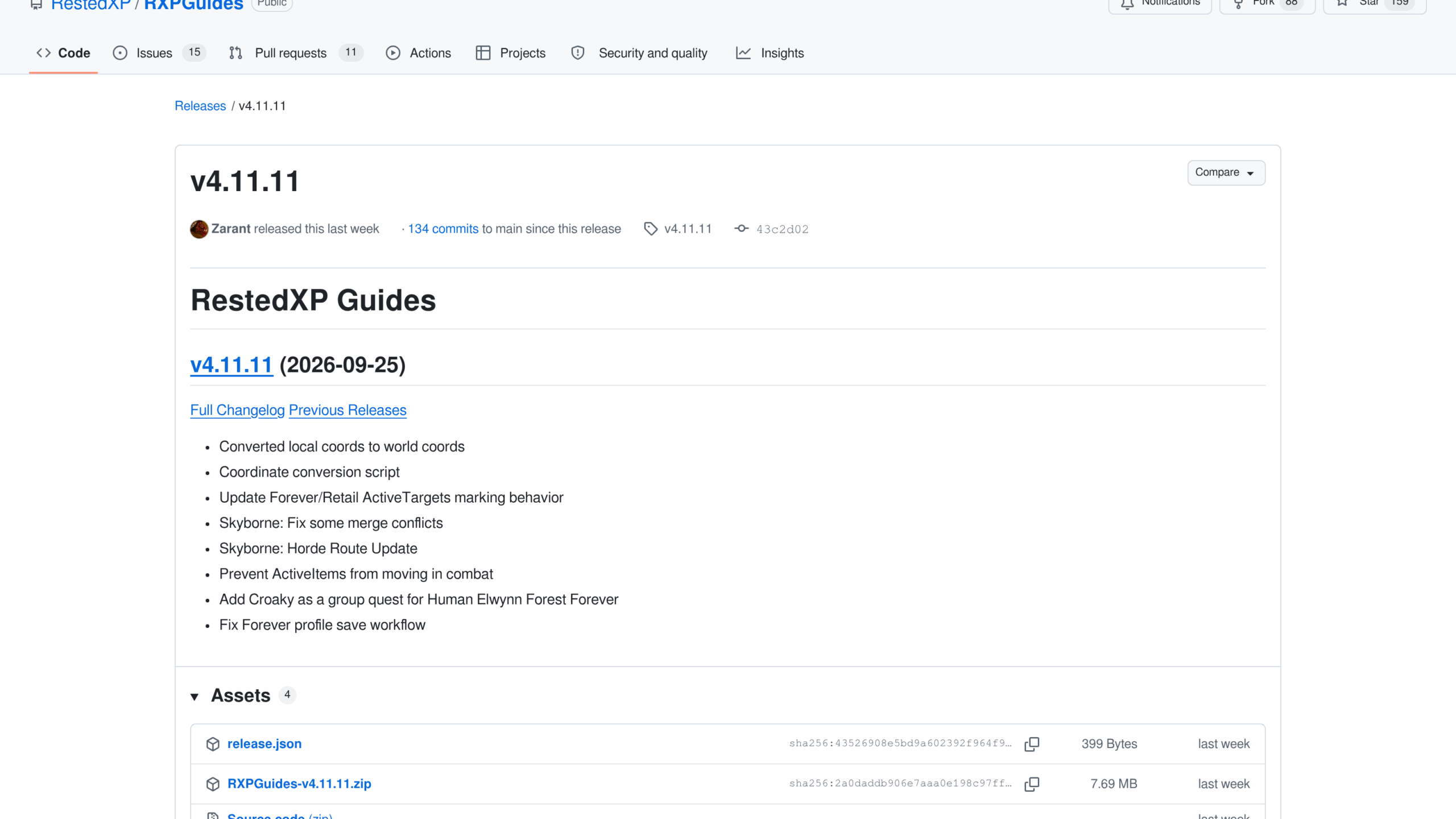
Your profile (settings, faction, display options) isn’t there when you log back in? Check your version before looking elsewhere. The notes for version 4.11.11, released on September 25, contain the line “Fix Forever profile save workflow”. The notes say nothing more about the exact symptom, so I can’t promise that was your case. But a version older than this one is the prime suspect.
For the “outdated” addon, the cause is almost always a copy meant for another client. Go back to step 1 and check that the file really comes from the Forever variant. You can also tick “load out of date addons” in the list, which unlocks the display but doesn’t fix a wrongly chosen file. And the beta can still change how addons behave before release: when in doubt, delete the folder, reinstall it, relaunch the game and see if the problem goes away.
One last point about the client: Blizzard limits what Forever addons are allowed to read, as we explained in the article on restricted Forever addons. Every addon therefore needs a version written for this client.
Which version to aim for today
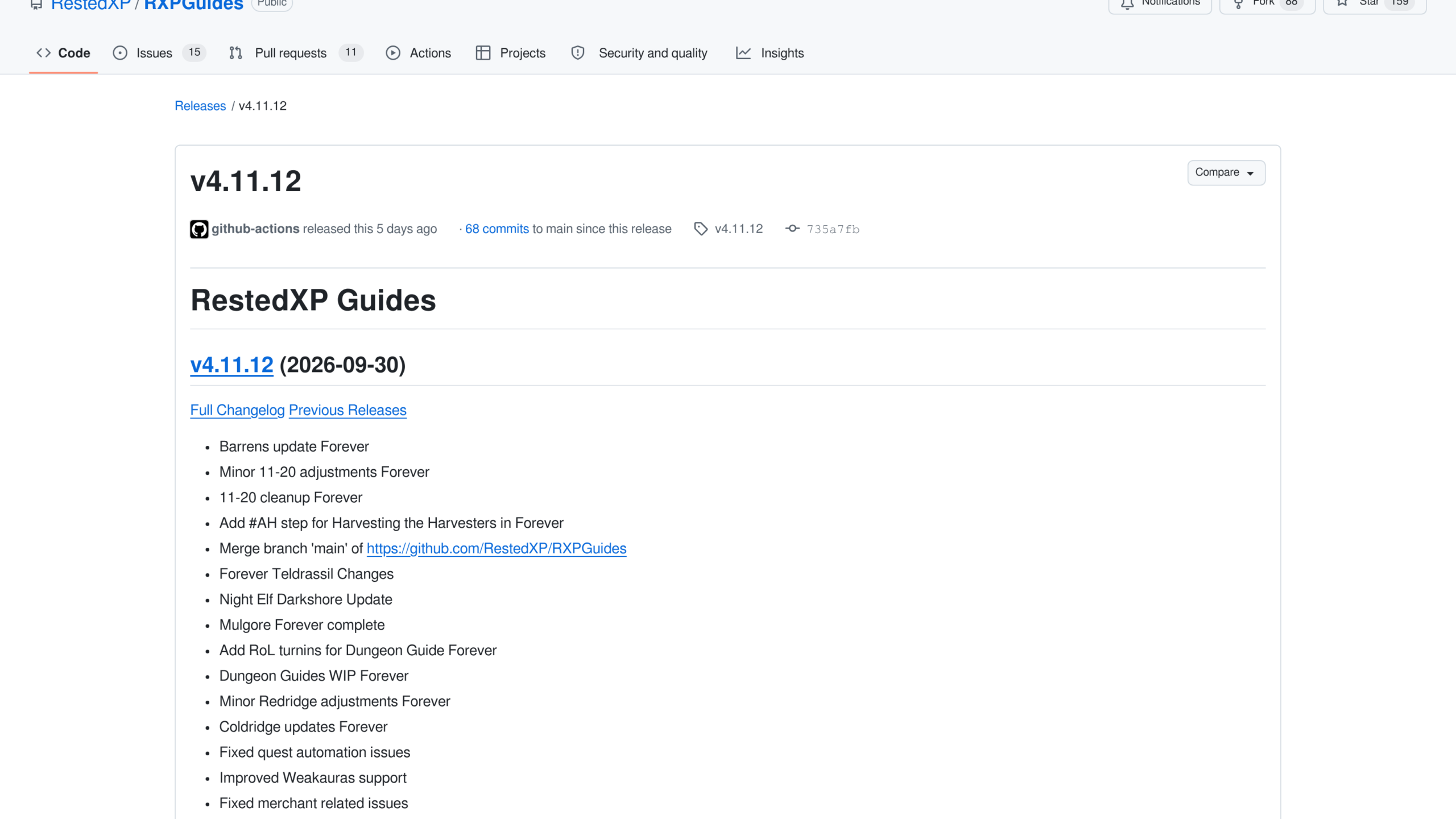
A number that moves fast: the RestedXP WoW Forever version 4.11.12 of September 30 is no longer the latest. As of October 5, the CurseForge file list shows 4.11.15, published on October 4. In between, the release notes give the following trail.
- 4.11.10 (September 25): several starting zones updated, including Mulgore 1 to 6, Durotar and Redridge Mountains 19-20.
- 4.11.11 (September 25): Forever profile saving fixed.
- 4.11.12 (September 30): The Barrens, Teldrassil, Darkshore, plus fixes to quest automation and WeakAuras support.
- 4.11.13 to 4.11.15 (October 3 and 4): bag and bank issues fixed, and an option to hide all map pins.
Take the most recent one, and go back to the download page the day before launch. While you’re at it, plan your tree with the talent calculator.






1 Commentaire
Merci beaucoup !