
You’re at the office, lunch break almost over, and the guild raid starts in an hour. A quick message goes out on the Discord channel: « I’ll be late tonight. » With Discord guild chat, that message now lands straight in the in-game guild channel. Creator Scottejaye found it again during the WoW Forever beta and walks through the setup in a 4-minute video.
Discord Guild Chat Is Back in the Options
When the beta opened, Scottejaye didn’t go looking for Edit Mode or a damage meter first. His first step was the options menu, to check whether the Discord integration was still there. It had been present during the BlizzCon test. It then disappeared at the beta’s official launch. It came back quietly, tucked into a small update, and works without a hitch. The beta moves fast: the September 24 patch, for instance, reworked all nine classes and launched the Cooldown Manager.
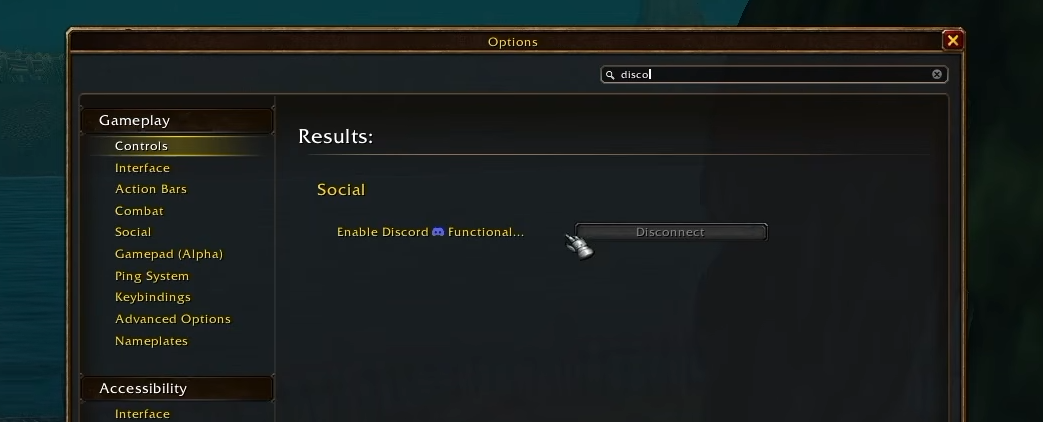
Players who’ve been on the modern game since patch 12.1 already know this system, introduced in that patch according to Icy Veins. For everyone else, here’s how to find it. Open the options panel and type « disc » in the search bar. The « Enable Discord Functionality » line shows up right away in the Social category.
Linking Your Account and Getting the Right Guild Permissions
Before linking any channel, two conditions need to be met. First, connect Discord from the Options menu, Social tab. The game then asks you to link your Battle.net account to your Discord account. Without this step, there’s no going further.
Second, your guild permissions. You need the full set of permissions, without necessarily being guild master. Scottejaye, whose screenshots illustrate this article, only holds the « Leadership » rank in his guild. He still has the same rights as a guild master, which is more than enough to set up the Discord guild chat link.
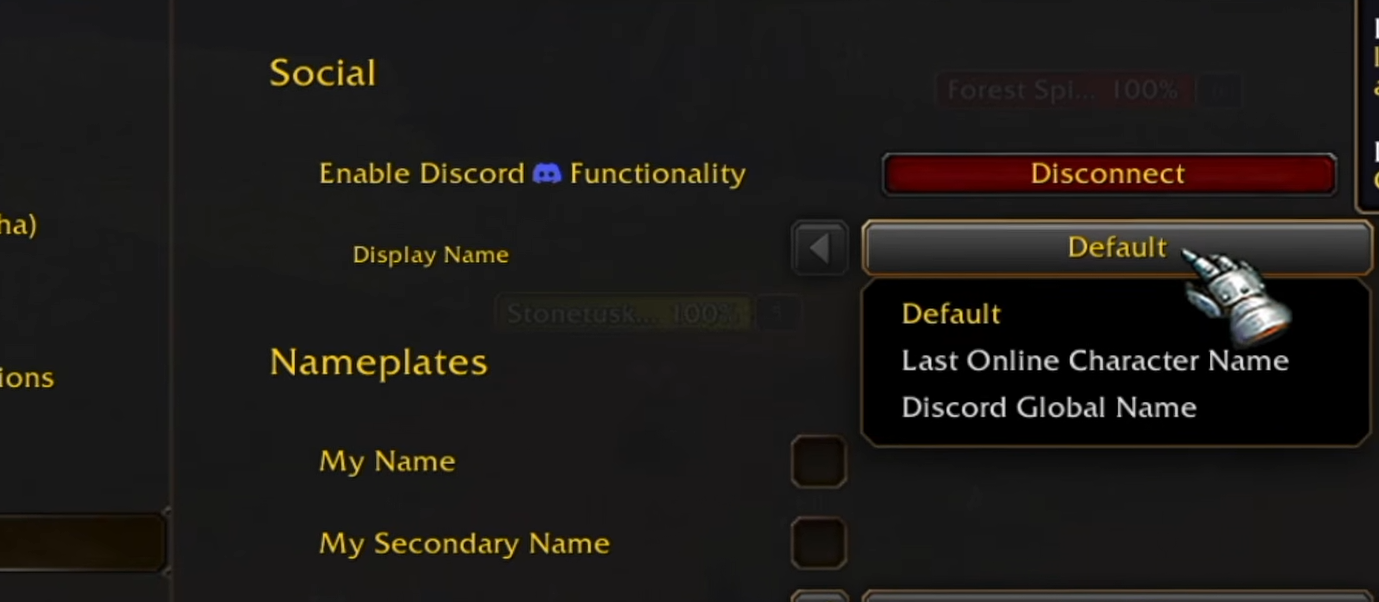
Once the account is linked, a red « Disconnect » button replaces the connect box. A « Display Name » dropdown menu then offers three choices: « Default, » « Last Online Character Name, » and « Discord Global Name. »
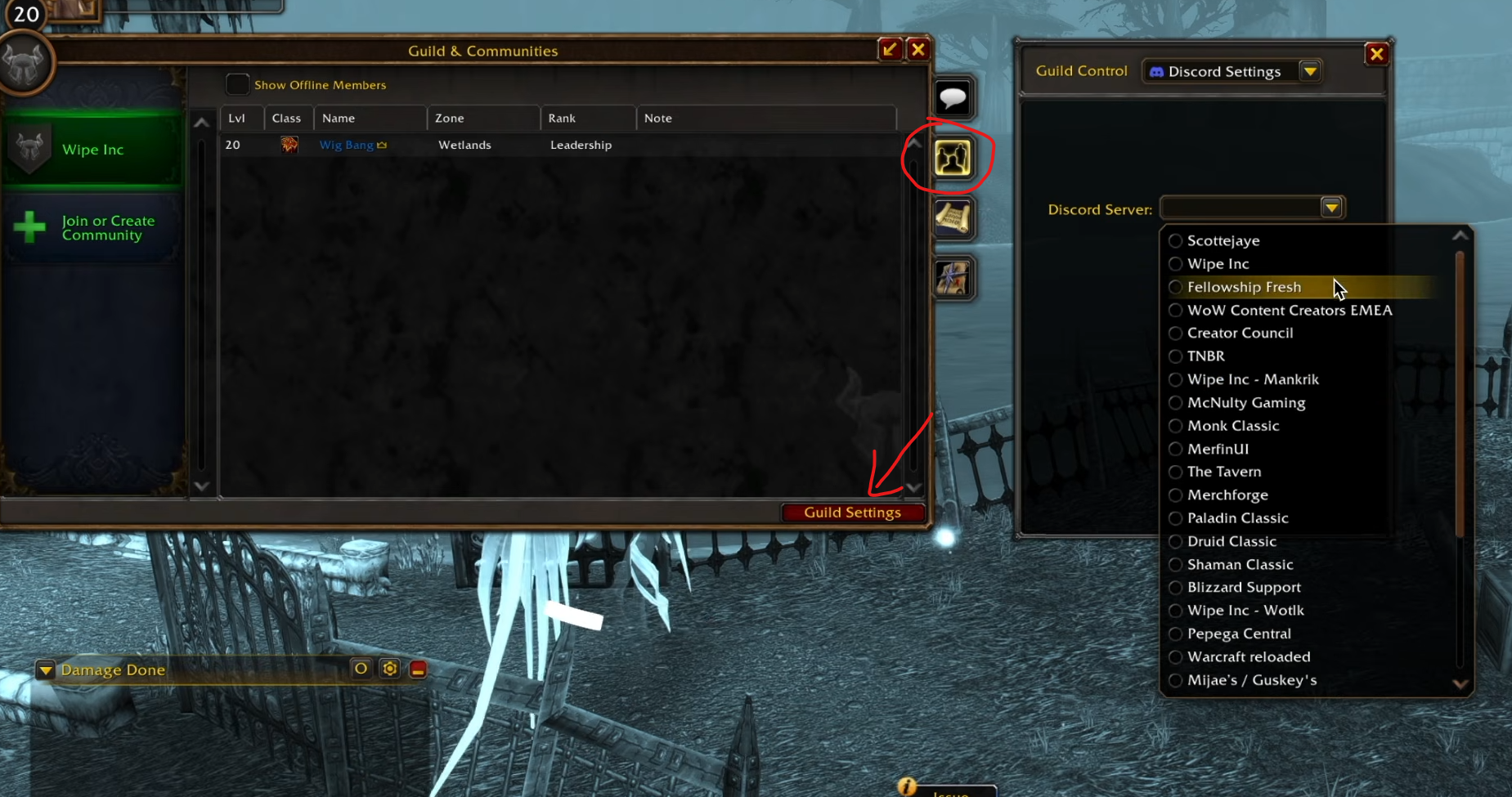
The actual connection happens in the « Guilds & Communities » window, opened with the J key. With the right permissions, the « Guild Settings » button, in the bottom right, opens the « Guild Control » menu. This menu gives access to « Discord Settings. » All that’s left is to pick the server, then the channel. This is the same path described by Wowhead for patch 12.1 on the modern version of the game.
On the Discord side, you also need to be a server administrator, since you’re the one authorizing the channel to receive the game feed. If you’re looking for a place to test this Discord guild chat link during the beta, the Kami Labs guild is back up and running on the beta.
Link a Dedicated Channel, Never the General One
The technical principle fits in one sentence: you link a single Discord channel to the game’s guild channel. The two feeds can stay separate, with one tab for guild chat and another for Discord. Scottejaye prefers merging everything into a single tab, and that’s the choice his own guild made.
Watch out for a common trap: most guild Discords already have a « general » or « guild » channel used for every conversation. Don’t link that one to the game. Create a specific channel reserved for this combined chat: Scottejaye named his « in-game guild chat. » The reason is simple. To write from that channel to the guild, or the other way around, each person has to have linked their Battle.net account to their Discord account. As soon as someone tries to write in that specific channel, Discord asks them to complete that link.
A guild often has members who no longer play, or don’t play yet, but still chat on the Discord server. If they land in a channel linked to the game without having linked their accounts, they can’t write there at all anymore. That’s why a separate channel, dedicated only to this bridge between guild and Discord, keeps the other channels free of any linking requirement.
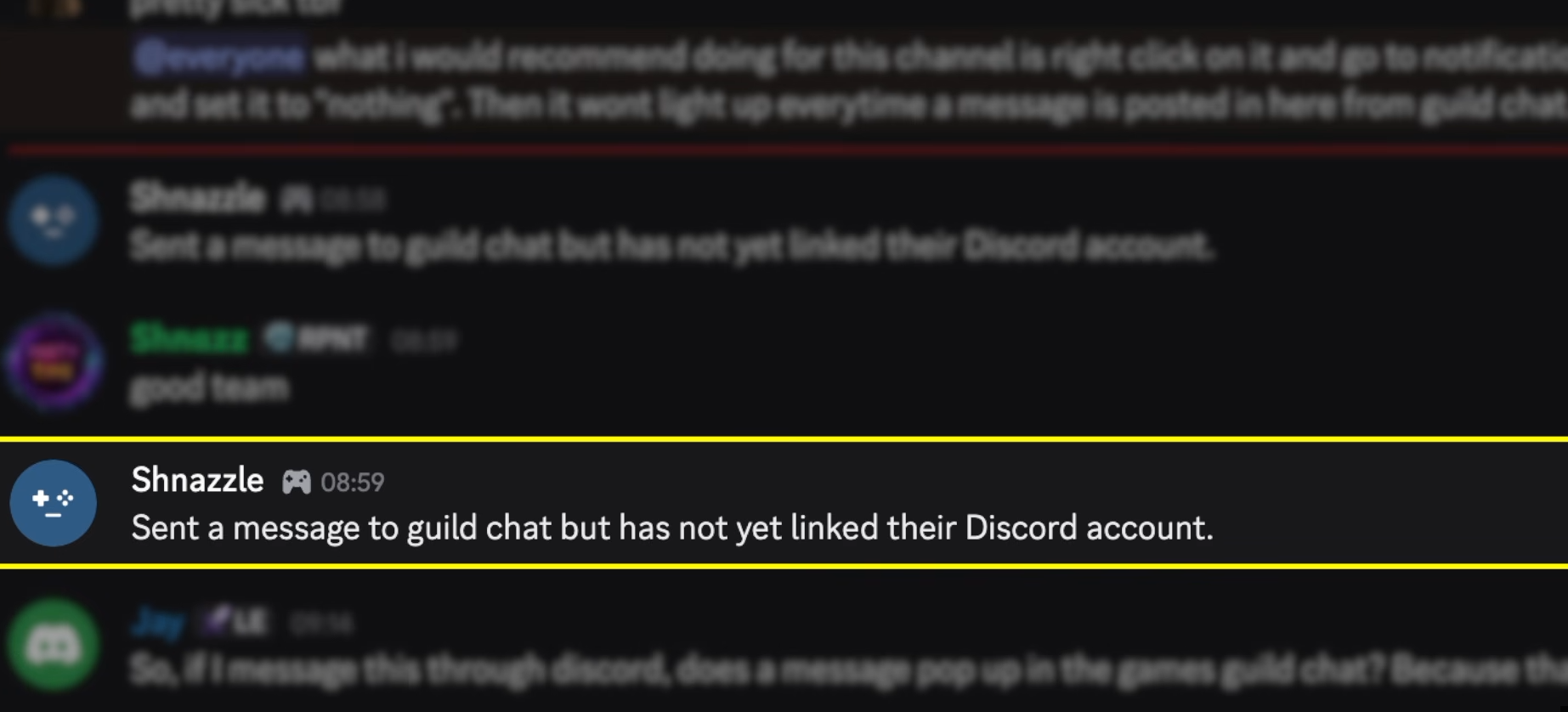
This restriction shows up directly on the Discord side. When someone writes in the linked channel without having linked their account yet, an automatic message appears under theirs: « Sent a message to guild chat but has not yet linked their Discord account. »
Once the Discord link is set up on both sides, everything flows without friction. What’s written in the Discord channel appears in the game’s guild channel, and what’s written in that channel appears in the Discord channel. Messages coming from Discord carry a small Discord icon in the chat window, so you always know where each line comes from. The official Discord blog covers the same link from the server’s side.
Turn Off Channel Notifications Before Announcing It
Once the channel is linked, every line typed in-game also shows up on Discord, in both directions. For a player who likes to see every new message light up in every channel, the linked channel pings at the slightest line exchanged in-game. On an active guild, that can quickly turn into a constant stream of notifications.
Scottejaye recommends warning the guild before turning on the Discord guild chat link. His advice: turn off the channel’s notifications, or mute it, before the messages start pouring in.
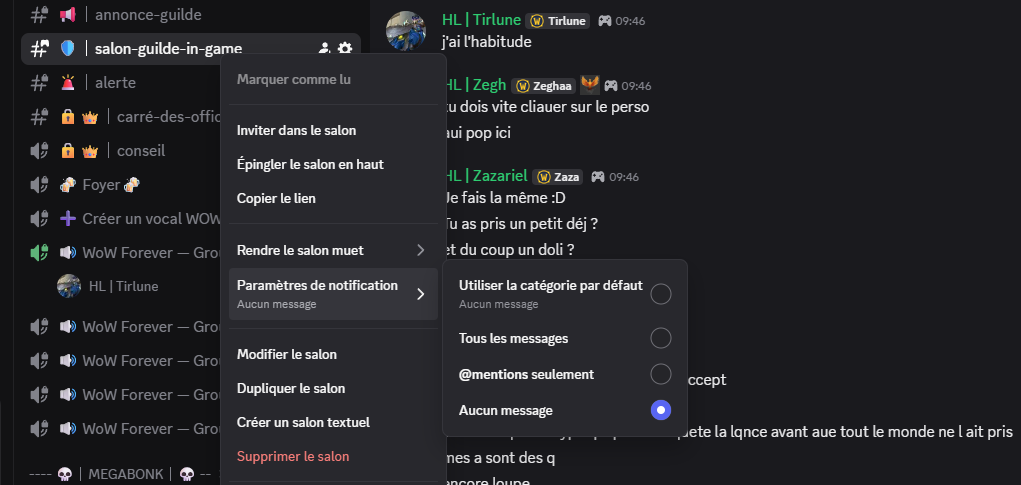
The whole thing takes a few seconds. In the example above, the channel is called salon-guilde-in-game. Right-click it, choose « Notification Settings, » then select « Nothing » (shown here in a French Discord client). You can also mute the channel until further notice. The channel name no longer changes color with every message: you have to open it to read it, like any other channel you check on your own.
Turning off notifications doesn’t remove anything useful. A player can still write in the linked channel to say they’ll be late for the raid, or that an invite has just gone out, straight from work, without launching the game. Every connected member sees it directly in-game, with the small Discord icon next to the message. Schedules, on the other hand, get set in advance in the guild agenda; the linked channel is for last-minute changes.
Scottejaye posted this advice himself on his Discord, with an @everyone mention so nobody would miss it.
The setup takes less time to do than to watch the video explaining it. He himself admits he could have made it a 60-second Short.








0 Commentaires
Aucun commentaire pour le moment. Soyez le premier à commenter !